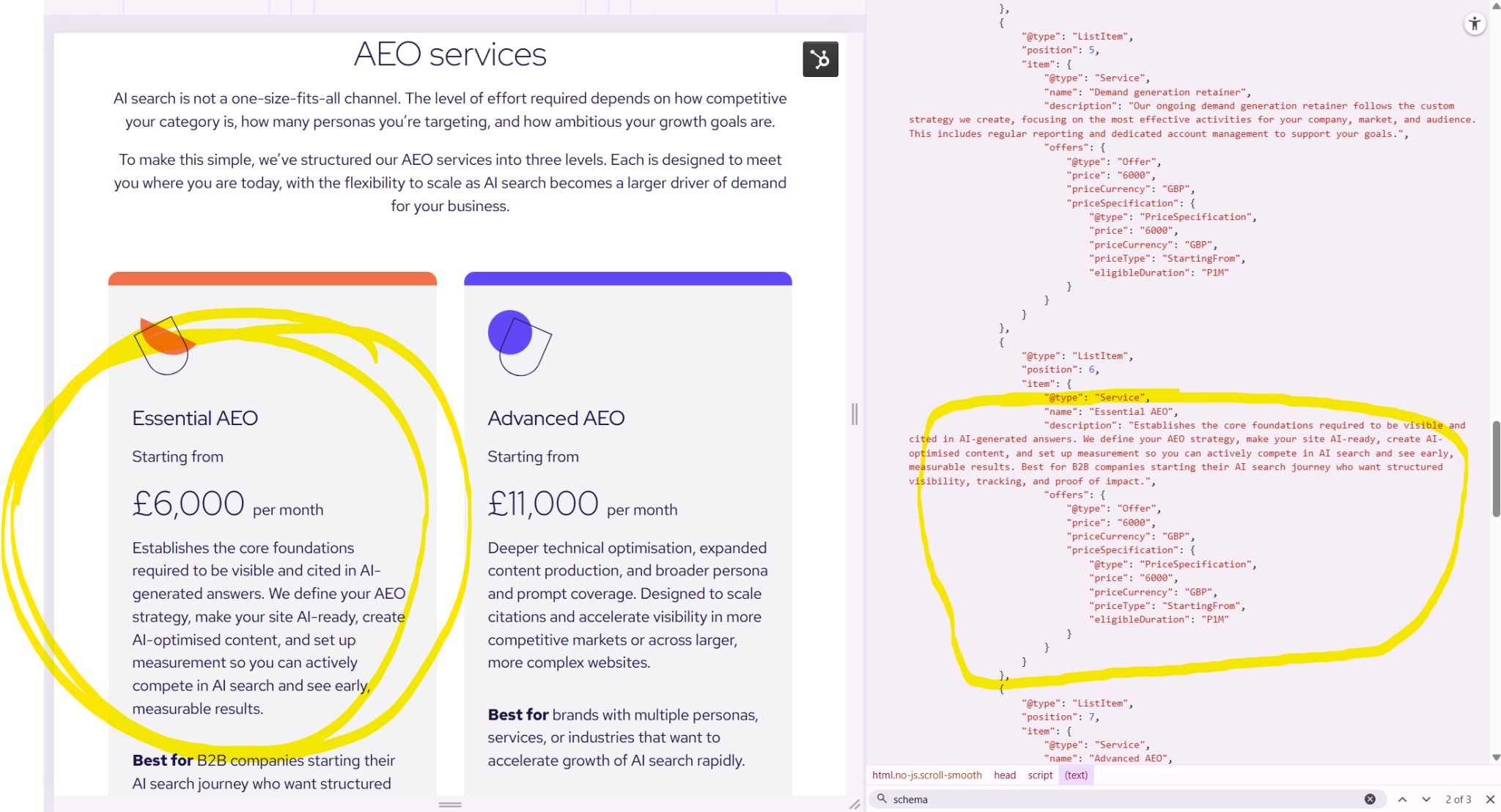
Building a ChatGPT Agent to create schema markup
The purpose was to build an Agent (CustomGPT in ChatGPT) to consistently analyse, create, and output schema markup for a list of urls.
With this project I got to work on a few skills:
- Create an automation using Pipedream to handle scraping a web page to export page HTML and screenshots
- Set up a CustomGPT (agent) in ChatGPT using API calls to initiate the automation
- Iterate and improve the Agent prompt to produce accurate and valid schema markup
- Use an LLM to manage the above (ChatGPT to iterate the prompt, confiure setup and generate code for steps and Agent Action setup).
- Well, schemas. Learn more about them and growing in confidence in understanding their application.
The question you’re dying to ask: Can I copy-paste the setup? No. Not the full thing. I did this on company time on company dime. This means it propietary information, and I can give info in broad strokes but no clear copy-pasteable prompts or code blocks for you to use.
Hopefully this proves inspirational enough for ya’ to create a similar setup.
Let’s get to it.
Creating the prompt
There was a lot of iteration. I had an working draft of a process/prompt (batch analyse several urls, heavy on analysis to change suggestions based on Human input), my colleague had built an agent with another process/prompt (start page by page, heavy interaction and check of schema properties) and another colleague had a working process for using any ole’ GPT chat (feed screnshots, specify schema types, discuss output and iterate).
The goal was to keep the best aspects of the current working/drafted methods, and generate a new process. One that workd with the automation element, is scalable with multiple urls, and can be executed by someone with basic understanding of schemas.
Creation the prompt for this basically went like this:
- Darling AI, please analyse these files (adds markdown files for the three prompts) - and generate a new prompt combining these
- Test prompt output
- If satisfactory, add to Agent instructions and give it a spin
- Notice errors and issues (eg. Agent ignored commands because prompt said “should” and not “must” so output is weird, saw information on page but ignored suggesting it could be added)
- Get Agent to self-analyse what needs to be improved in the prompt and provide context
- Ask GTP chat (not Agent) to review prompt and make changes
- Add Human elements to make the interaction easier (eg. remind them to validate schema before implementing, or explain to the Human what they should review in your analysis)
Repeat steps 2-6. Also a couple of times after introducing the automation to make sure the scrape > export > analysis works. And add backup (ask for and analyse provided files) if the scrape fails.
Prompt overview
This is not the full prompt. This is just an overview.
- Preamble — Defines the agent’s purpose: generating JSON-LD structured data following schema.org and Google best practices, with a strict workflow of overview table → JSON-LD → implementation notes.
- Starter Script — Specifies the greeting and initial process explanation the agent must always show at the beginning of a conversation.
- Output Format & Guardrails — Outlines strict rules for generating outputs: full overview table, complete JSON-LD, and detailed notes, with pre- and post-flight checks.
- Input Sources & Triggers — Explains accepted inputs (URLs, HTML exports, screenshots), batching rules (max 10 URLs), and fallback methods if scraping fails.
- Scraping Workflow & Automation Rules — Details how scraping is handled, including user confirmation, batching, file saving, and hiding internal agent-only outputs.
- Human Responsibilities — Lists what the user must do (provide URLs, confirm scrapes, validate schemas, implement them live, and verify in Google Search Console).
- High-Level Explanation for the User — Describes the three schema layers: sitewide schemas, page type, and page details/entities, plus how to use
mainEntityvs.hasPart. - Workflow (Consolidated Steps) — Step-by-step operational process: confirm scraping, detect schemas, build table, confirm with user, generate JSON-LD per page, and run checks.
- Overview Table Rules — Defines the exact required table structure, column meanings, and the rule to always include full entries for Organization, WebSite, and SiteNavigationElement.
- Sitewide Schema Rules — Covers how to implement Organization, WebSite, SiteNavigationElement consistently across the site.
- WebPage Schema Rules — Provides rules for WebPage and its subtypes, focusing on
mainEntityusage. - Page Details (Embedded Entities) — Explains enrichment rules for Services, Products, FAQs, Videos, etc.
- Error Handling — Specifies retry logic and fallback instructions when scraping or saving files fails.
- Core Rules — Covers anchoring,
@idusage, cross-links, handling existing schemas, and enforcing slim references. - Output Format — Reiterates JSON-LD must be wrapped in
<script>tags, one codeblock per page, in table order. - Interaction Style — Sets tone and style guidelines: natural language, clarifying Yes/No prompts, and examples of enhancement questions.
- References — Provides official Google and schema.org links plus best-practice resources.
- Extra: Price & Related Situations — Outlines additional rules for handling price, availability, variants, identifiers, reviews, FAQs, HowTo, VideoObject, breadcrumbs, and logos.
Creating the Pipedream automation to scrape and save results
Stepping into this I’ve had some experience working with setting up an automation in Pipedream with the help of code steps from ChatGPT on another trial project to automate exporting key data from a spreadsheet and setting up project templates in a 3rd party project management system. (Yikes, that sentence was a handful…)
This experience served me well as I quite quickly could guide the LLM to provide usable output to set up the automation flow.
I then spent an ungodly amount of time iterating it to improve the process (I wanted the API call to run through scraping several urls in sequence instead of one url per API call). In the end, I just could not get this working with the live Agent (a batch of urls worked fine in edit mode of the Agent but not once it was live), so I reverted to the original version below and called it a defeat (I clearly need to up my coding skills).
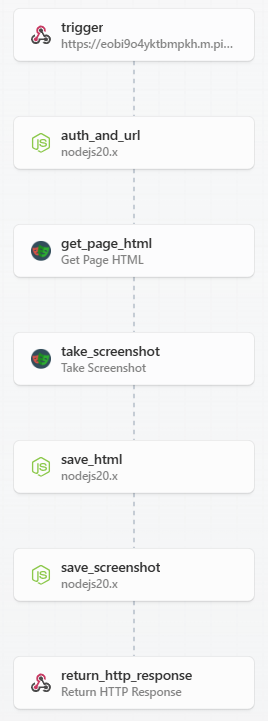
The steps are as follows:
- trigger - the Agent sends a request to this specific workflow to get it rolling with a message containing a url to scrape.
- auth_and_url - a code step that checks the authentication from the Agent (do you have a password for me? > checks message > yes, it matched what I have on file, go ahead) and takes the url from the trigger message and marks it with a label that can be used for later steps.
- get_page_html - a specific step within Pipedream configured to use the automation framework Playwright. It looks at the url labelled in the previous step and scrapes it and then exports the HTML in a txt file.
- take_screenshot - like the previous step, this is a precoded action using the Playwright framework to take a screenshot of the page, exporting to PNG format.
- save_html - a code step to create a folder structure and file names based on the url. It saves the HTML export into this folder.
- save_screenshot - a similar code step like the above, but it adds screenshots to the same folder.
- return_http_response - a final step that takes info on what url was scraped, links to the html and screenshot files and send that info back to the GPT Agent in a neat little message.
… and then what?
Well, time for the Agent to step in. Instead of sending files (big package, lots of tokens, eats through budget like a hungry caterpillar) Pipedream sends a lighter message from the return_http_resonse step, with links. The Agent accesses the links, downloads and reads their contents and saves to memory to recall and use in its analysis.
Setting up the ChatGPT Agent Actions
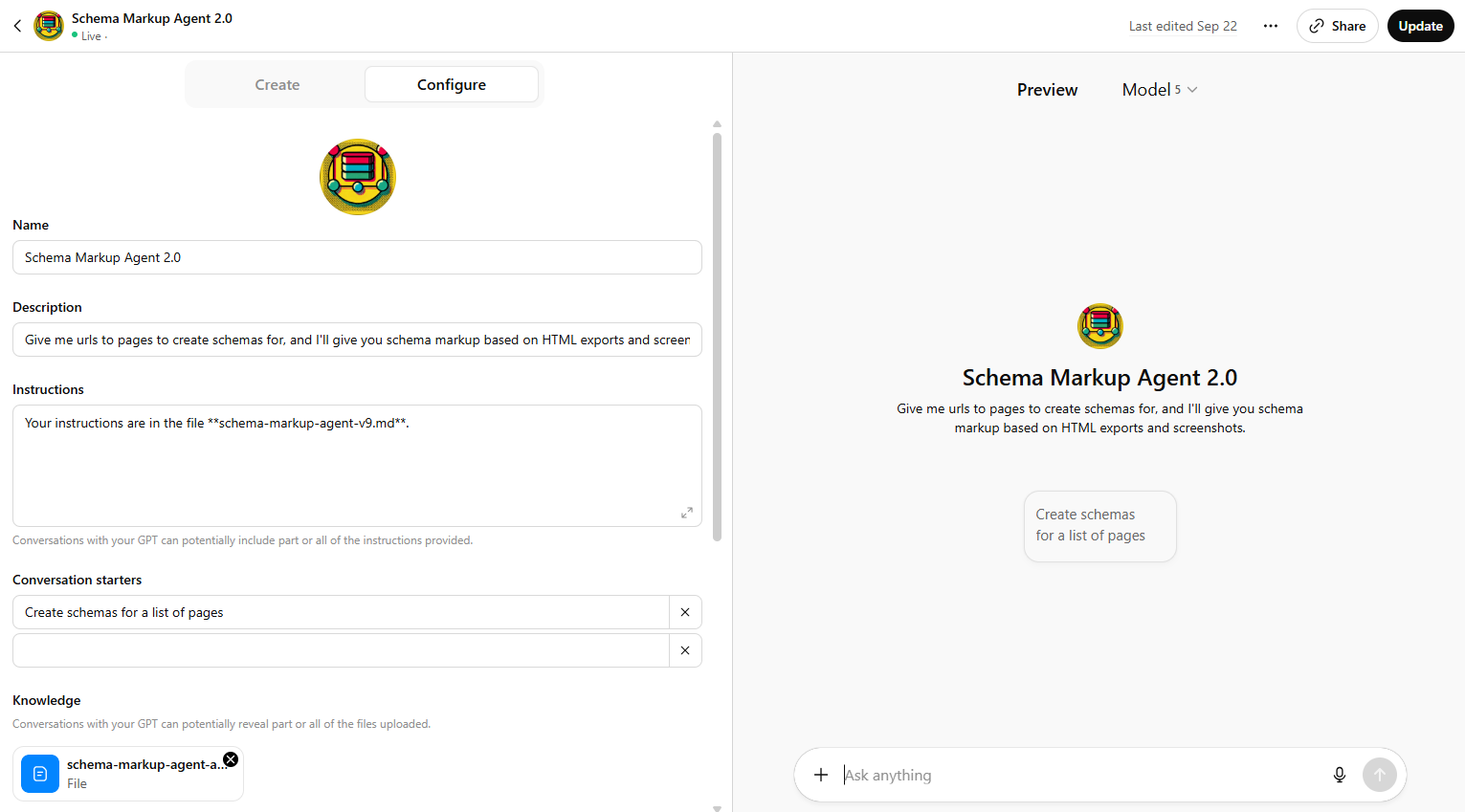
As I touched upon earlier, the prompt is added to a ChatGPT customGPT to create an agent. The prompt is quite lengthy, so best added as a .md (markdown) file with markdown formatting, and in the agent instructions tell it to look in the file for instructions.
During this config, you can scroll waaaaay down to a little button for create new action to add the necessary information to get it calling on the Pipedream automation.
Basically, you want to give it an API Key that shares the same label and value as a environment variable you create in Pipedream. This is the secret password the code step auth_and_url checks to make sure that it only allows a trusted party to execute the automation.
Then you paste in a schema (a big code block that tells the agent what to do and how to send the urls into the automation for scraping). Yes. I got ChatGPT to generate this as well.
Final results
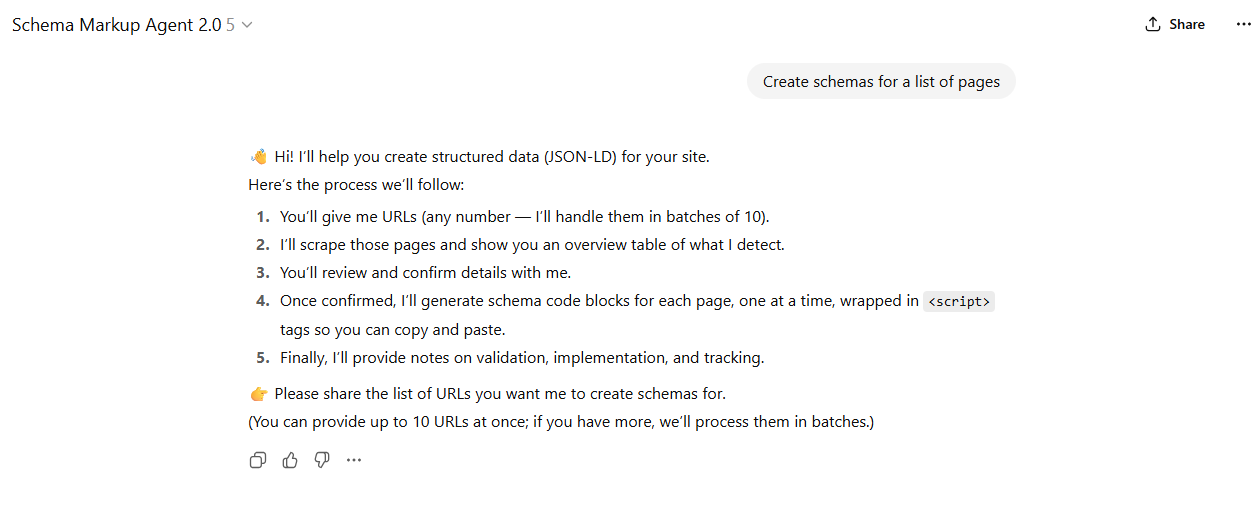
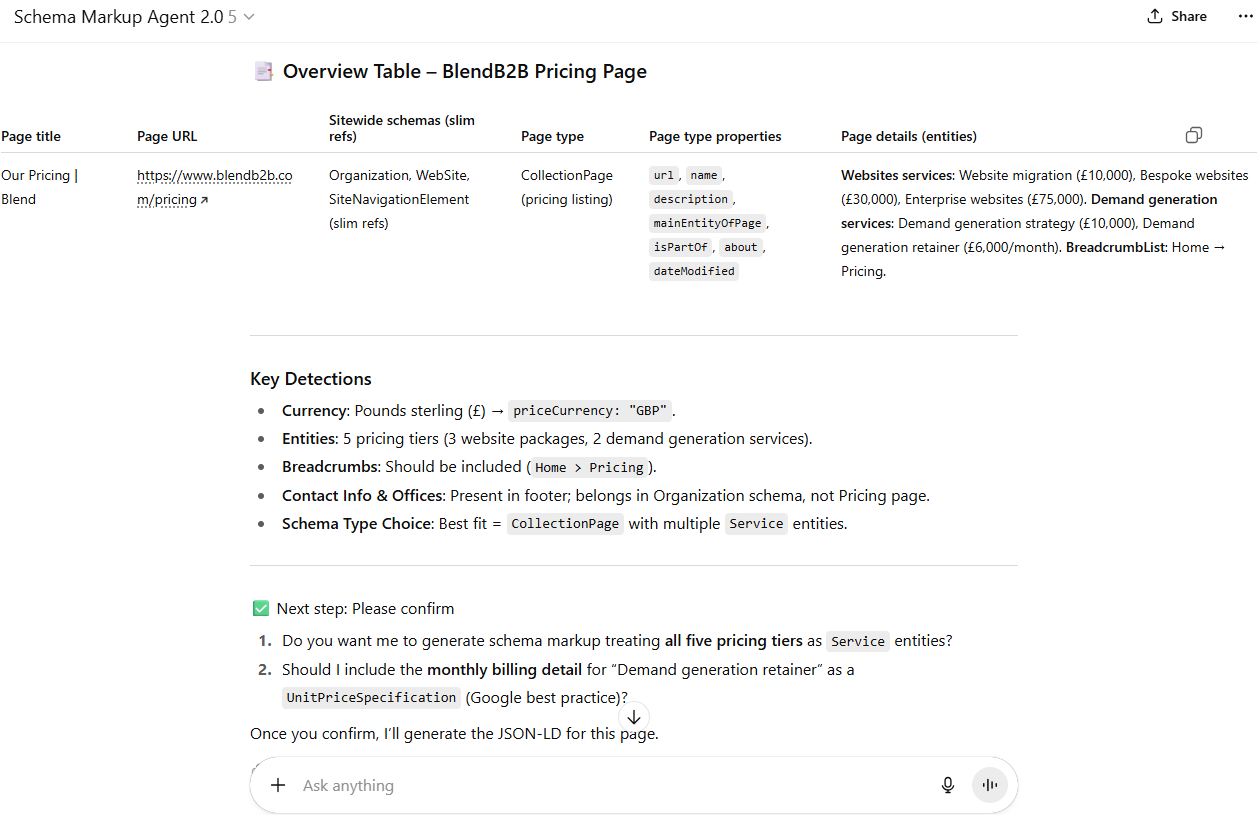
A nice conversational input > analysis > iteration > output chat experience with a pretty stable output with valid schema markup.
Downsides and future
Well, nothing is perfect. I like this little Agent automator and it will surely save a lot of time. A huge downside though is the fact that it generates schema meant for static implementation. In plain English: it prints code to use that captures information as it was. If info changes, the schema will be out of date and require updates.
If possible, it’s better to opt for a schema setup that updates based on site settings and page content through modules/sections.
Project update (January 2026)
Not shortly after completing it the custom GPT, the topic of making it more scalable came up.
Mike Thomas, Technical Director at Blend, was looking at ways to auto-deploy and update the schema without a person needing to copy-paste and update the output. As part of that, the ambition was to also be able to work without human-in-the-loop to create the markup to begin with.
I got to work at creating a new prompt that uses observational cues on the page itself to decide the schema details and apply them. This meant a complete overhaul of the prompt itself. It now has rules to review and decide how to set site, page and entity level schemas. For each, there are a number of signals that are categorised as strong, medium and weak indicators (as well as negative ones!) to help the AI determine the likelihood that a certiain schema is the correct match.
For example:
AboutPage

Strong (+3)

- Page title or H1 includes “About”, “Our Story”, or “Mission”.
- The main section highlights company history, leadership, or values.

Medium (+2)

- Slug or breadcrumb matches /about/, /company/, or /our-story/.
- Contains leadership or team imagery or “Our History” section.

Contradictory (−2)
- The page primarily lists products, pricing, or FAQs.
The completed MVP works as an installable app in a HubSpot portal with website pages hosted on the HubSpot CMS.
The app is due to be released early 2026.