Setting up a Slack app to post n8n error alert
As I’ve been getting more acquanted with the ins and outs of using n8n for automations, I’ve also found the need to monitor errors. There have been instances of edge cases I’ve had to sort manually and ultimately rebuild parts of the flows to handle, so instead of monitoring errors on a basis of remembering to do so, I set up a flow to send pings to Slack when errors occur in a flow.
The steps I’ll be outlining here will cover:
- How to set up a Slack bot and credentials to use in n8n
- Creating the error trigger flow and configuring it to send to the channel (using the bot credentials)
- Configuring other flows to send errors to the error flow
Setting up the Slack bot
You need to have specific admin-like permission levels for this one.
- Go to https://api.slack.com/apps and log in to your Slack instance if prompted
- Click Create New App, and pick setup From scratch and your workplace instance
- Under the first tab Basic information you’ll find the Signing Secret value you’ll need to use later in the n8n setup
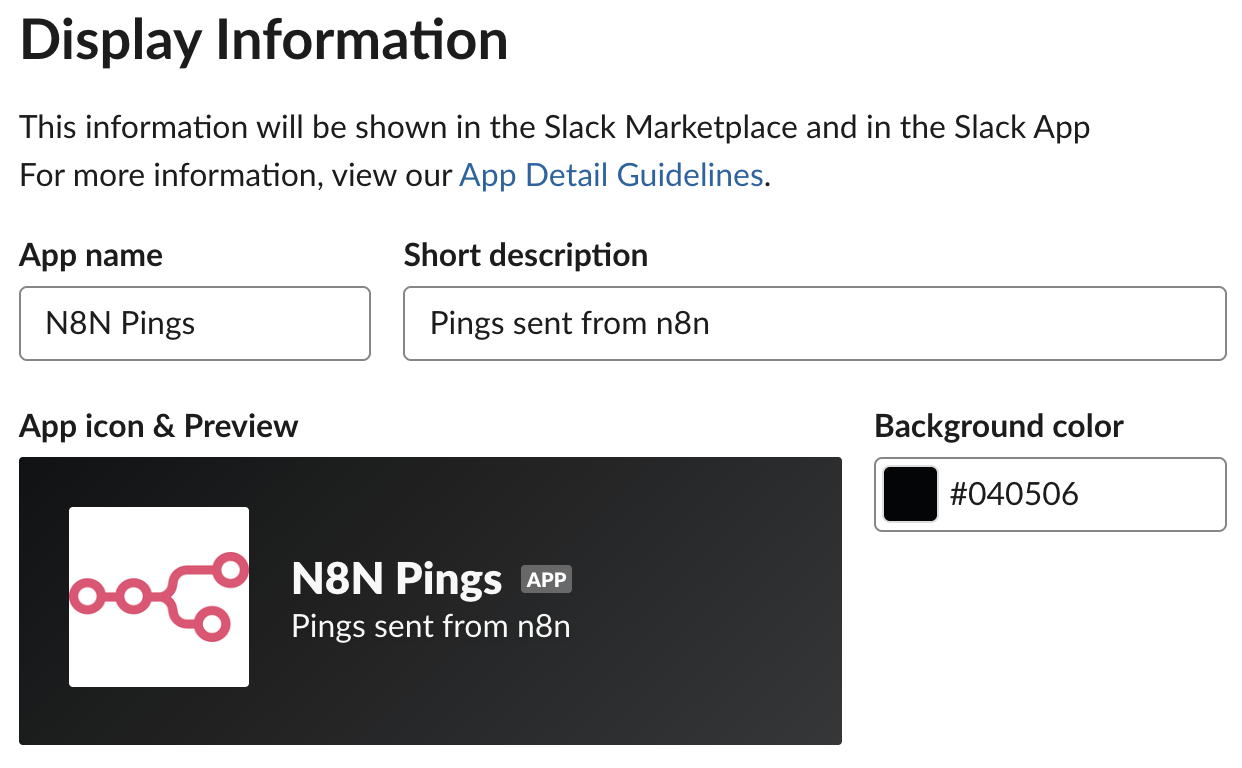
- In the same tab, scroll further down to Display Information and add an app name, description and app image
- Go to the tab OAuth & Permissions and scroll down to Scopes and in the settings for Bot Token Scopes
- Add and save bot scopes for:
assistant:write,chat:write,chat:write.customize - Scroll further up on the same page and click the button to Install to your workspace (and go through any installation steps)
- After installation, this will now have generated a Bot User OAuth Token, and this will be used in the n8n setup later
- Open Slack and add a new channel called
#n8n-errors(or similar name that makes sense!)
Creating the error flow
- Create new flow in n8n
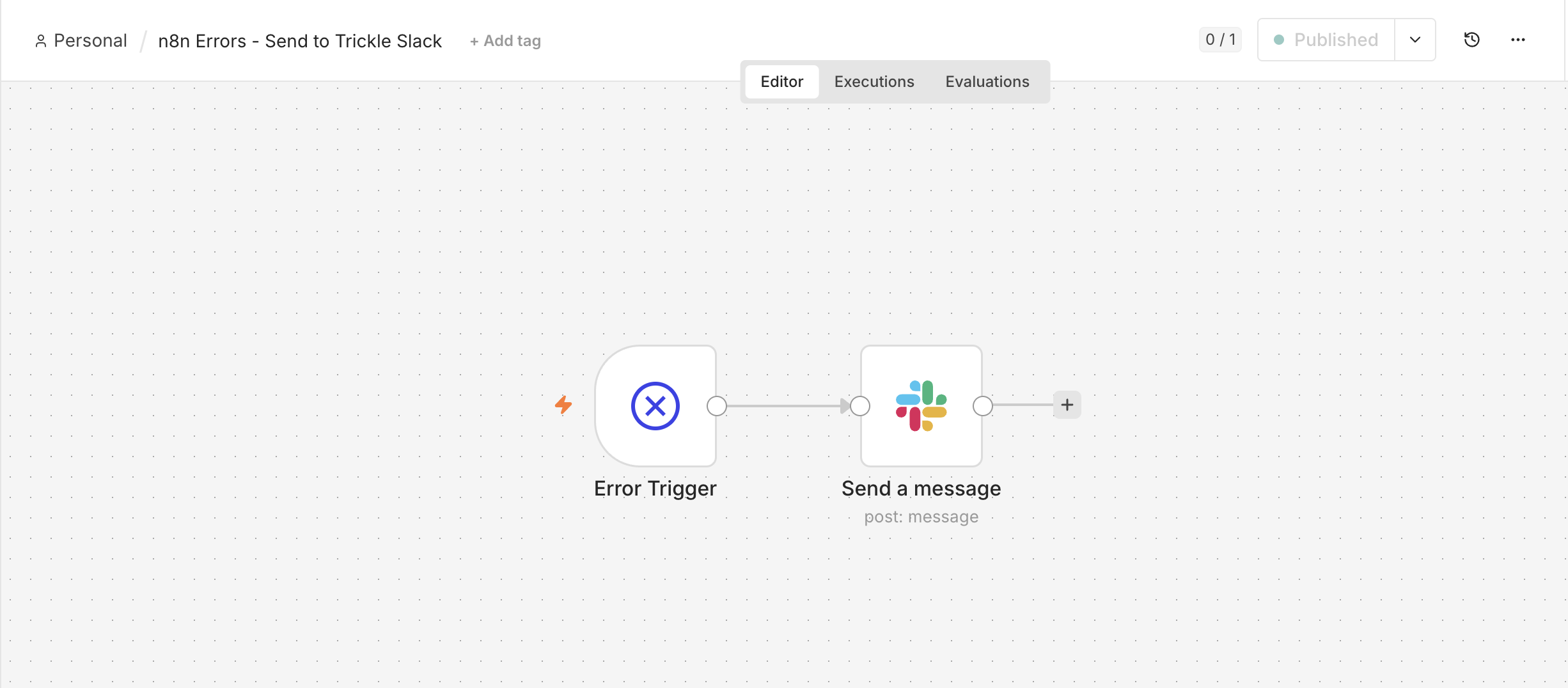
- Set trigger to Error Trigger
- Add a new node > Slack: Send a message
- In the node settings, add credentials by clicking the pencil icon (next to the word Credentials) or clicking dropdown and Create credential
- Pick the type: Access token and copy the credentials from the bot setup (outlined in the steps above) for Access Token (in Slack app settings: Bot User OAuth Token) and Signature Secret (in Slack app settings: from Signing Secret)
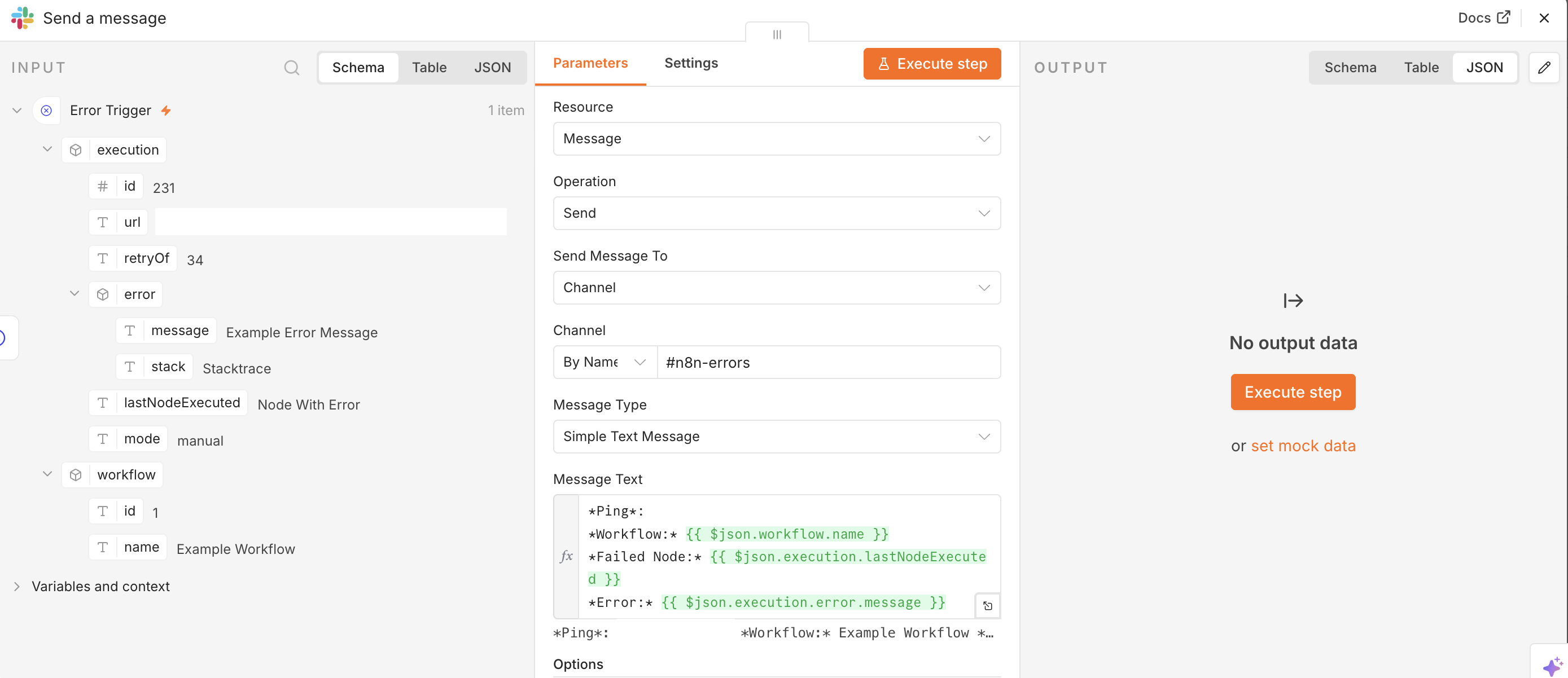
- Configure the Slack node. Pick the channel it should ping and the message content. Tip! Click to execute the trigger node while in the Slack message node to see what metadata you can “pull in” to the message to give more context.
- Save and publish
Ping specific users
In the company instance I’m running this setup, we are several n8n workflow builders. Several of us are using the same app an general error flow, but want the pings to notify the main builder when something goes awry (for him/her to check out and improve the build).
To make the message also ping specific users, we’ll add in the user ID from Slack for the message to pull in and @-ping the right person. The build also relies on a simple setup where each responsible maintains their own error flow (to not mess with branching logic depending on workflow or do table lookups for owners).
- In Slack, click on a profile picture
- In the profile sidebar click the icon with three dots and Copy member ID
- In the Slack node message, add @ and the full user id between
<>, example:<@USERID>
Slack message example
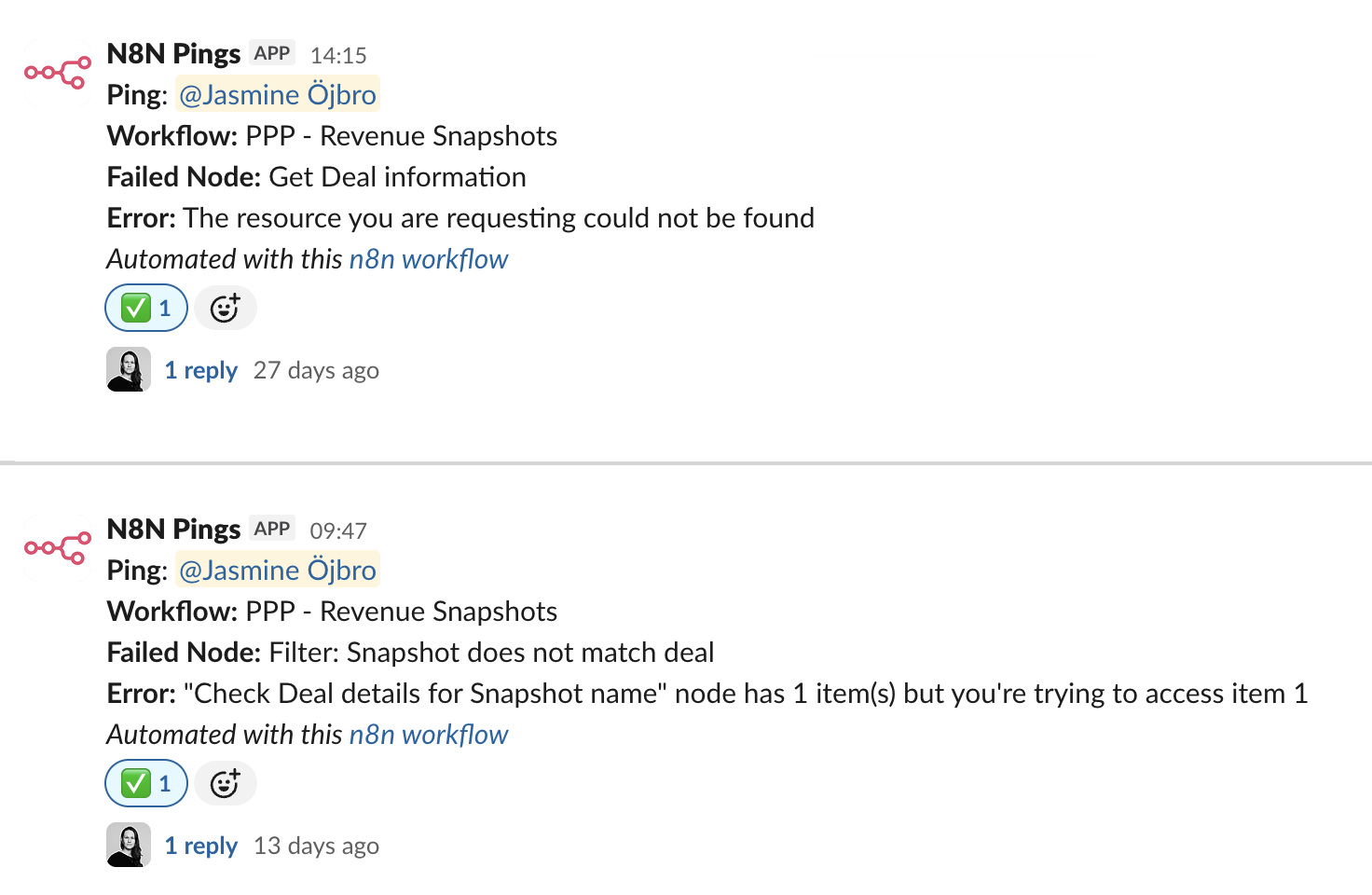
*Ping*: <@USERID>
*Workflow:* {{ $json.workflow.name }}
*Failed Node:* {{ $json.execution.lastNodeExecuted }}
*Error:* {{ $json.execution.error.message }}
Configuring the other flows to send errors
This is flagged within the setup of the error trigger, but is easy to miss. You need to also connect the flows you want to send error to this workflow for it to recieve errors.
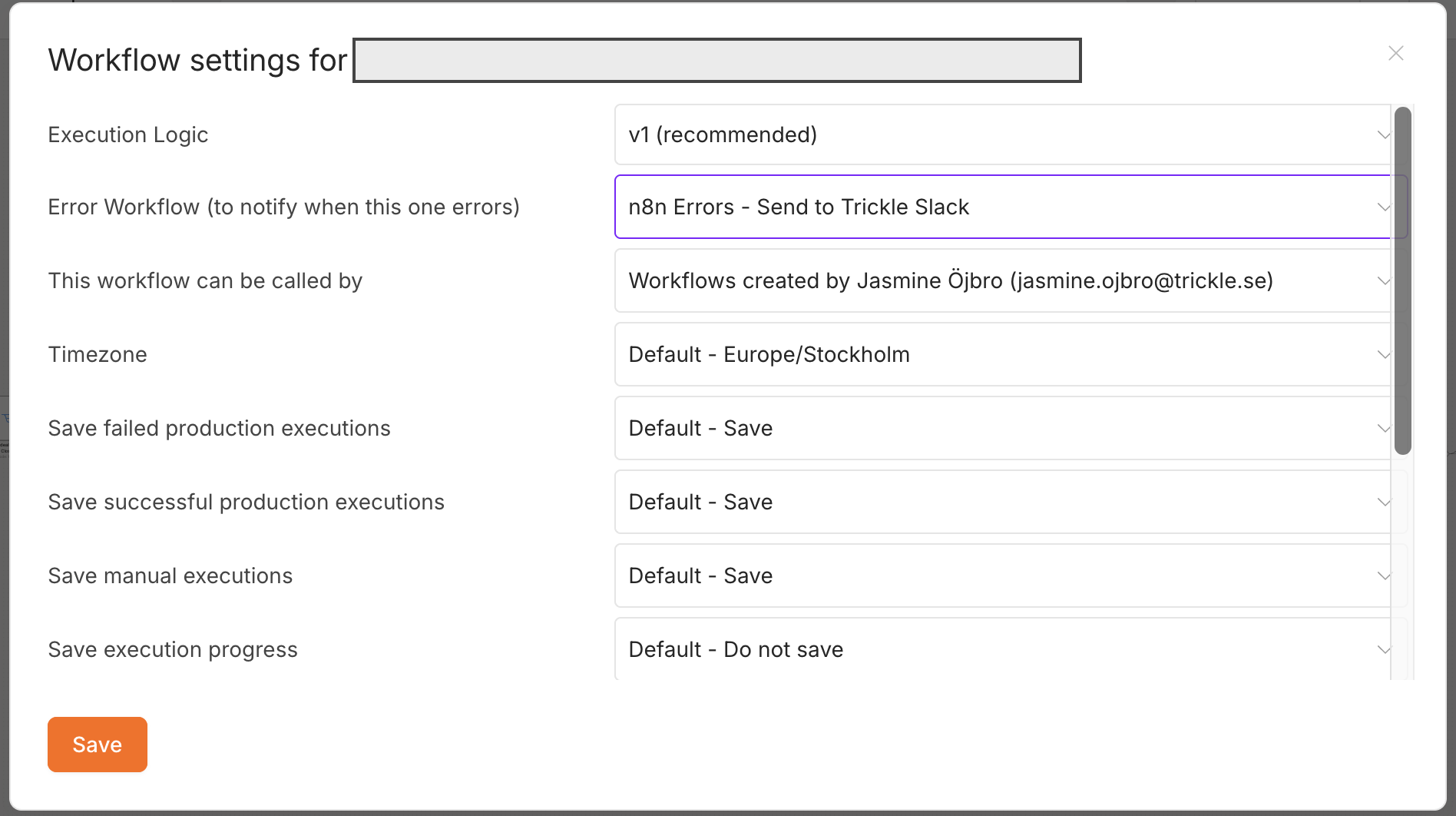
- In the “main” automation flow(s), find the icon with three dots > Go to Settings
- In the menu, under the Error Workflow (to notify when this one errors) set the newly created one
- Save
Working with errors
For me it’s been a great help to get pings directly into Slack instead of relying on manual monitoring of errors in the execution table. The way I use these are:
- When a Slack ping arrives, I can go into the corresponding workflow and look at the execution log.
- Click on the error and it will take me through to the run in question
- Review the chokepoint/error
- Validate the root cause of the error. If possible, adjust n8n workflow to avoid similar issues.
- Mark the ping in Slack with a checkmark to indicate it’s been handled, and make a note to self on what the fix was (message reply to the initial message).
I’m sure that there are more sophisticated setups that could be employed, but I think this is a simple enough and great way to get started.