How to use custom tokens in HubSpot's automated emails
I’ve taken a look at using the Custom Token in automated marketing emails in HubSpot and different ways to populate and use them.
The basics
Information on HubSpot’s knowledge base on this topic is sparse, the article Use custom tokens in automated emails outlines what it is and how to add it, but not too many details on use cases. In short, the custom tokens work similarly to personalization tokens. You can pull in properties on the enrolled contact or associated records. The added benefit is that you get more granular control over which associated record’s property values to display.
It’s locked at the moment to Marketing Hub Enterprise.
You can still make really good use of the standard personalization tokens and really should be on any email marketers radar to spruce up their emails a bit. Just make sure you are careful with the accuracy of the data points you pull in, and add a sensical backup (in case a value is missing) so sentences still make sense without the intended property value.
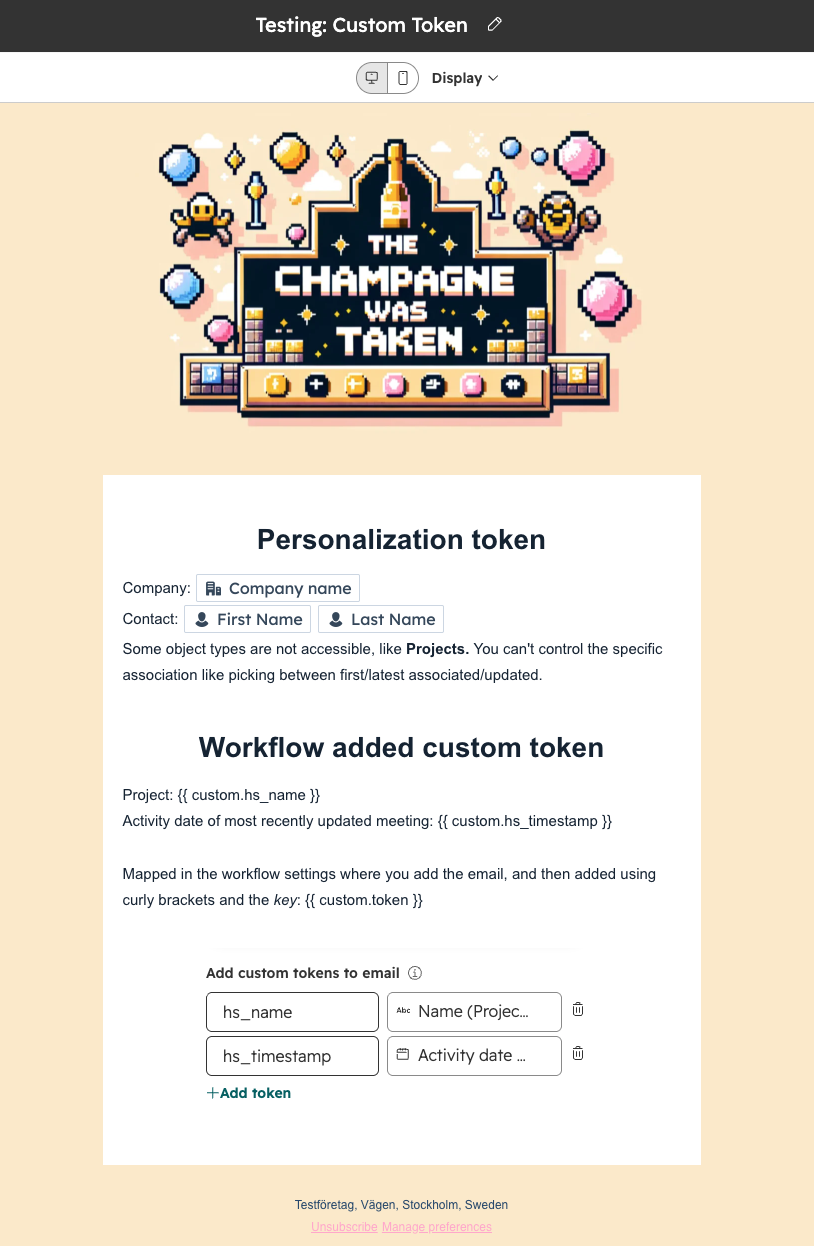
The vanilla version of the custom token use is to have it as a replacement for the personalization token, but in a way that allows you to control which object it picks values from.
A wider array of objects are accessible, custom objects for example and Custom Events, and for most of these you can pick by latest/earliest updated/associated and in some times by association label.
The custom token is a clear winner in cases where you may have a slightly more complex internal hirerachy of associations and want to be certain the right info is pulled through for display.
Adding Custom Code output as a custom token
To further push the test on what’s possible, I’ve added custom code to the mix. It works just as expected. In the code step you declare what output fields you want to have, and add a custom token connected to that data output.
My code example for test
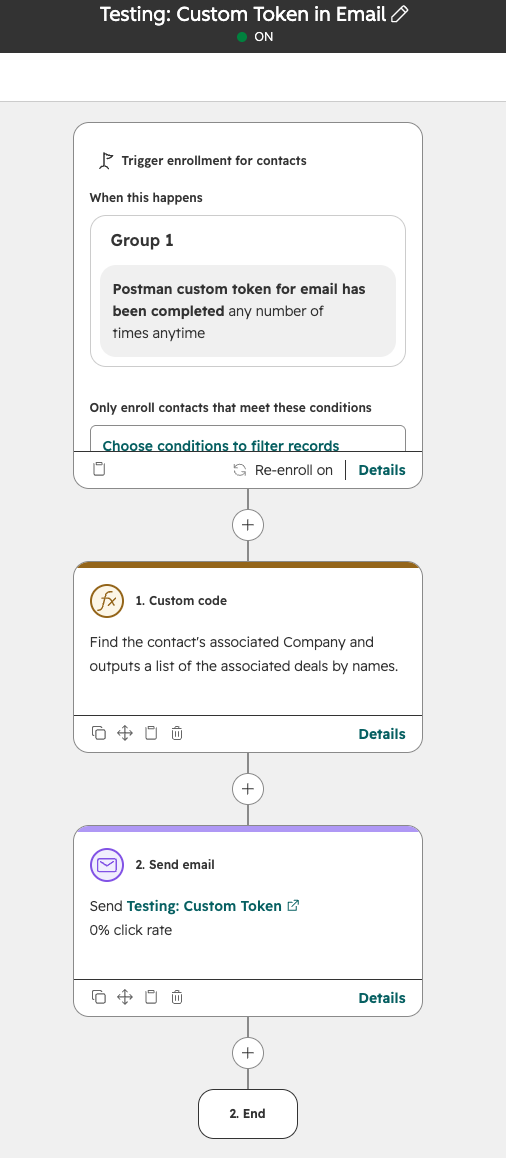
Before sending the email, the workflow will use a code lookup on the Contact to go to the Primary associated Company and then grab the full list of deals that is associated to it.
- The Code step needs whatever should be used as a token as an output
- In the email step, make sure to add the output from the code step as a token
- In the automated email, add the custom token reference and publish the changes
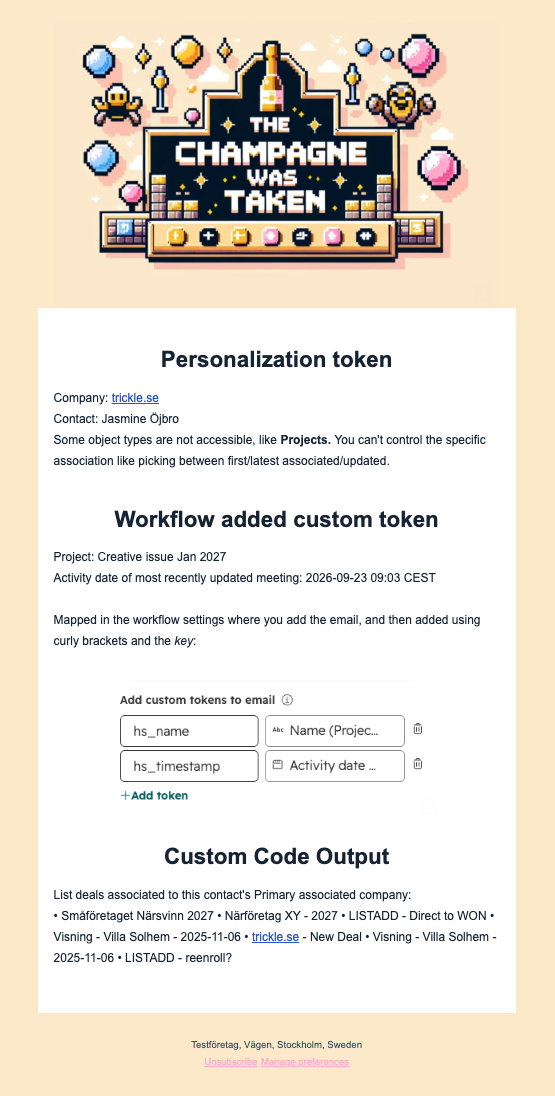
In this test I didn’t work on prettifying anything, just grasping the basic use and constraints of the custom token, and getting output in a bullet list didn’t translate to the email HTML so I’d recommend minimal formatting in a comma separated list for a similar endeavour.
Using data fetched from webhook
In essence, the custom code step in the previous test is a webhook querying internally. So an internal webhook fetching values on what you already have on the HubSpot platform.
I’m cutting some corners here in my test case as I’m assuming a pure webhook action or a webhook by custom code will give you output to use in a similar way.
Trigger by webhook and using sent data for a custom token
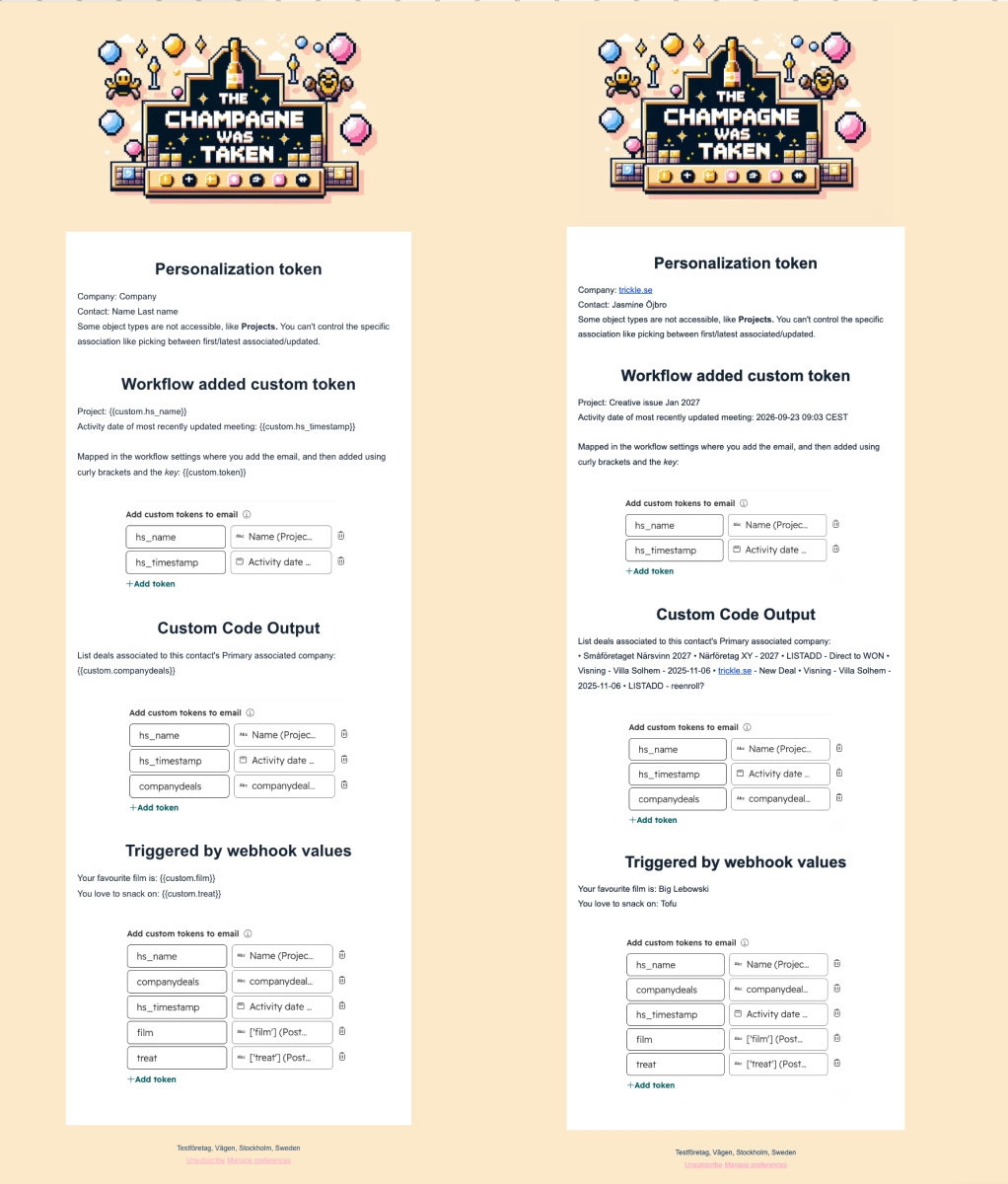
Final test for me here was to figure out what it’d look like for a webhook triggered workflow. When you set up an incoming webhook to trigger a workflow, you configure the fields it can receive data for. Similarly to the output fields of a custom code step, these can be added as custom tokens as well.
To configure:
- Set up a POST request in Postman & finalise configuration & the raw body info in JSON for the names (to be used for the custom token) to send
- In HubSpot change the trigger to a webhook type
- Grab the webhook link
- Add to the Postman request URL and send
- In HubSpot finalise the mapping
- Webhook is now ready to use and can be transferred to whatever other source will be sending the request
Use cases
I can see this useful for a few scenarios when you want to send emails to a contact:
- Adding values for associated objects based on association labels (more steering than through the personalization token)
- Pulling through information from a custom object
- Finding values to send through for objects that is not directly associated to the Contact, as in the example of a list of deals associated to the Company
- Triggering email sends from external actions, similar to a transactional email, such as confirming shipping information or purchased products
- Sending internal email notifications pulling in data for a complex set of associations
I think this is a worthy addition to Marketing Hub Enterprise, and really useful when webhooks or custom code is involved. It certainly has its upsides for the working as an upgraded version of the personalization tokens as well, especially for being able to pull trough more object types.