Creating a Custom Event and send via API for lifecycle stage changes triggers
This is an outline of a recent build for a client (Enterpise tier, access to Custom Objects and Custom Code Action steps in workflows) together with learnings around the Custom Event tool and the method of “send via API” together with CSV import.
The aim: Custom Event logs of triggered happenings
The core use case here is wanting to see how different triggers for lifecycle stages happen on Contacts and Companies over time:
- Log cyclical changes between the lifecycle stages for Customer and Churned
- See paths to triggering lifecycle stages. As an example: which paths most commonly lead to MQL? How many Leads were sourced from Sales vs Marketing.
- Log number of happenings when a trigger to define lifecycle stage is met to compare over time. For example, a Contact was sourced and courted by Sales (becoming an SQL, skipping MQL stage) but later met MQL triggers on their own for specified actions.
- Review the true order of hitting triggers; to allow a good visual dataset for the funnel report, the portal has strict logging of previous lifecycle stages before progressing (Lead > MQL > SQL rather than Lead > SQL) and sorting on event allows a second report to exist to follow the order.
To achieve this we’ll be using the tool Custom Events and Send via API (send by code).
We create the event:
- Give it a name
- Specify what properties it will collect. These are then accessible via custom event for use in reports, workflows and segments
- Decide the object it will collect info for, I set one up for Contact and another for Company
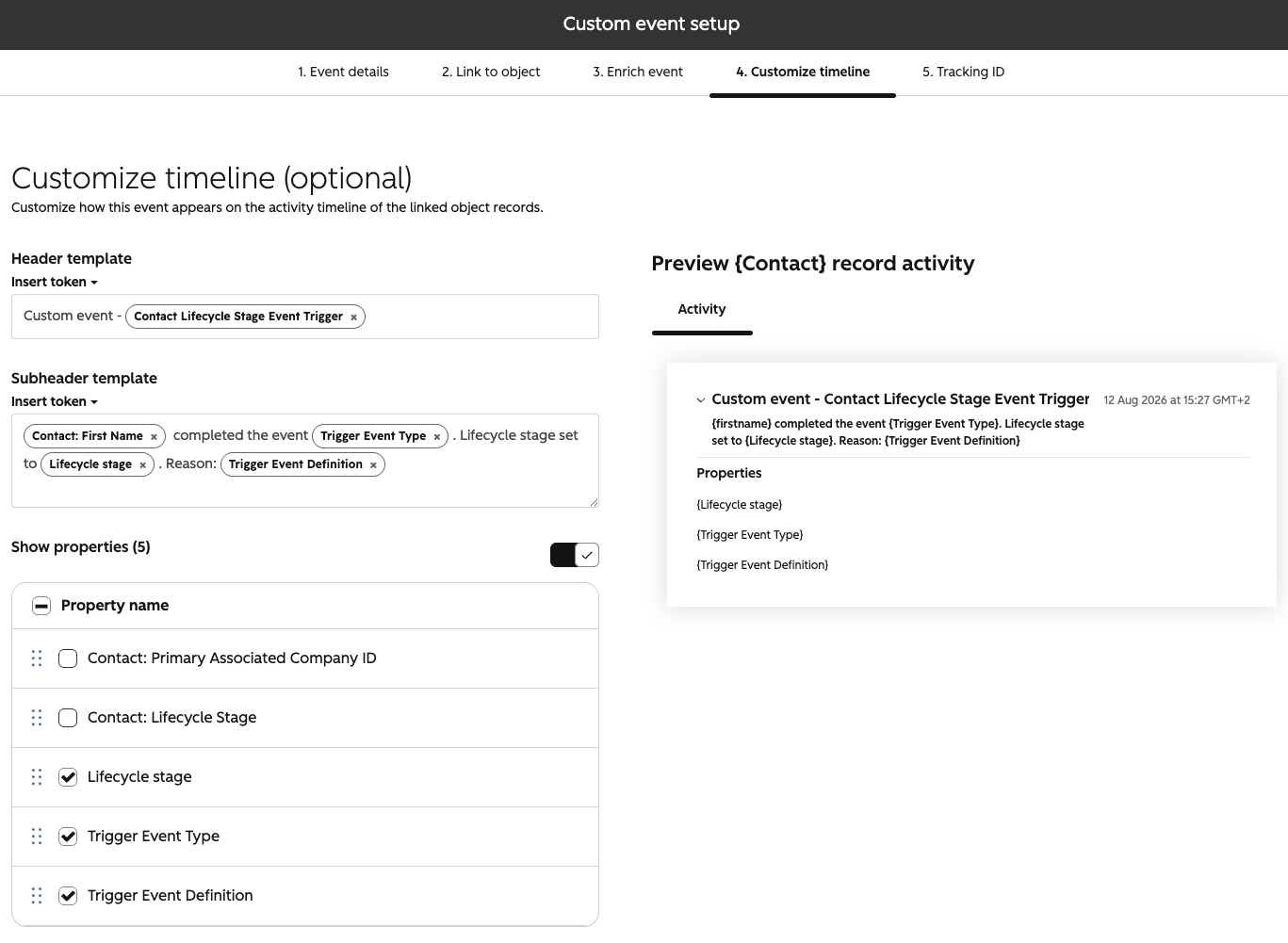
- Set up what information is shown on the record timeline
- Save event, which will give us a tracking ID to use for the events
For this particular setup I created properties for:
- Lifecycle stage -
lifecycle_stagestring - What lifecycle stage this trigger corresponds to. For example “MQL” or “SQL” to filter reports on. - Trigger Event Type -
trigger_event_typestring - The type of event trigger. For example: Application sent - Trigger Event Definition -
trigger_event_definitionstring. - Further information on the event trigger type. Sample text: Has sent an application to use the product. Onboarding type: Agentic - Is first stage entry -
is_first_stage_entryboolean (true/false) - True/False if this is the first time this lifecycle stage is triggered. Used to filter reports if a record triggers the same stage multiple times.
Testing: Send data via API from Postman with past dates
To test sending via API we simply:
- Set up a service key with scopes for
analytics.behavioral_events.send - Add the token to an environment in Postman with the variable set to
{{HUBSPOT_ACCESS_TOKEN}}and the token - Set up a new POST HTTP event in Postman and send to
https://api.hubapi.com/events/v3/send - Set Authorization to Bearer Token and refrence the variable
{{HUBSPOT_ACCESS_TOKEN}} - Add the event details to the Body tab (with a valid record id to a contact and details for the properties we want info for) and hit send.
You can batch sends, but I played it safe and sent one event at a time to monitor the results.
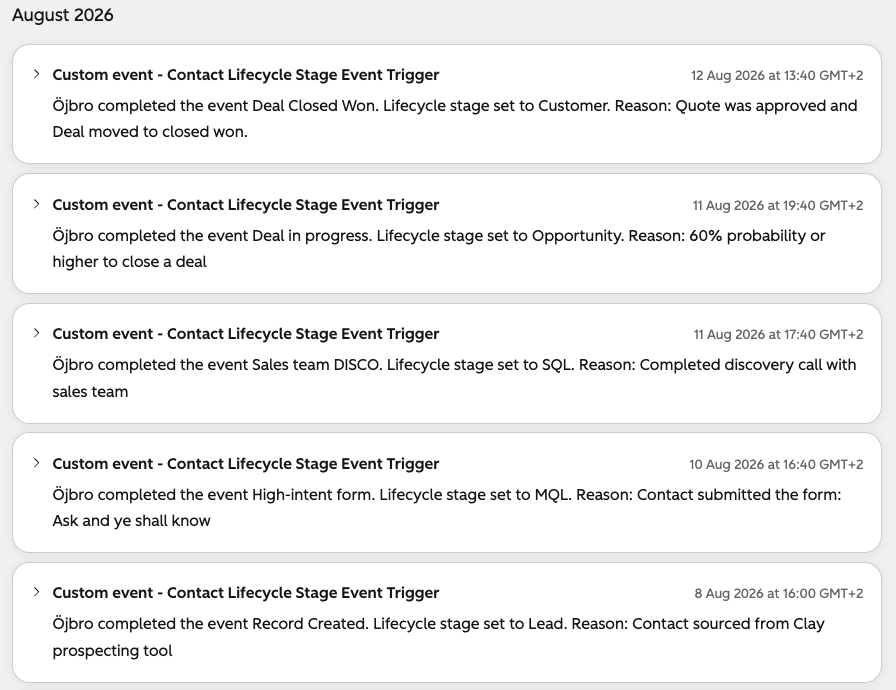
For the example I’ve created, I sent through:
{
  "eventName": "TRACKING ID",
  "objectId": "RECORD ID",
  "occurredAt": "2026-08-12T11:40:00Z",
  "properties": {
    "lifecycle_stage": "Customer",
    "trigger_event_type": "Deal Closed Won",
    "trigger_event_definition": "Quote was approved and Deal moved to closed won."
  }
}
And once all events landed, within seconds mind you, it looked like the following:
Setup to send event through a HubSpot workflow
This portal has access to Custom Code Actions inside workflows, which means we can run these event triggers inside HubSpot without needing to use a 3rd party service like Zapier or n8n.
The basic outline for the setup is:
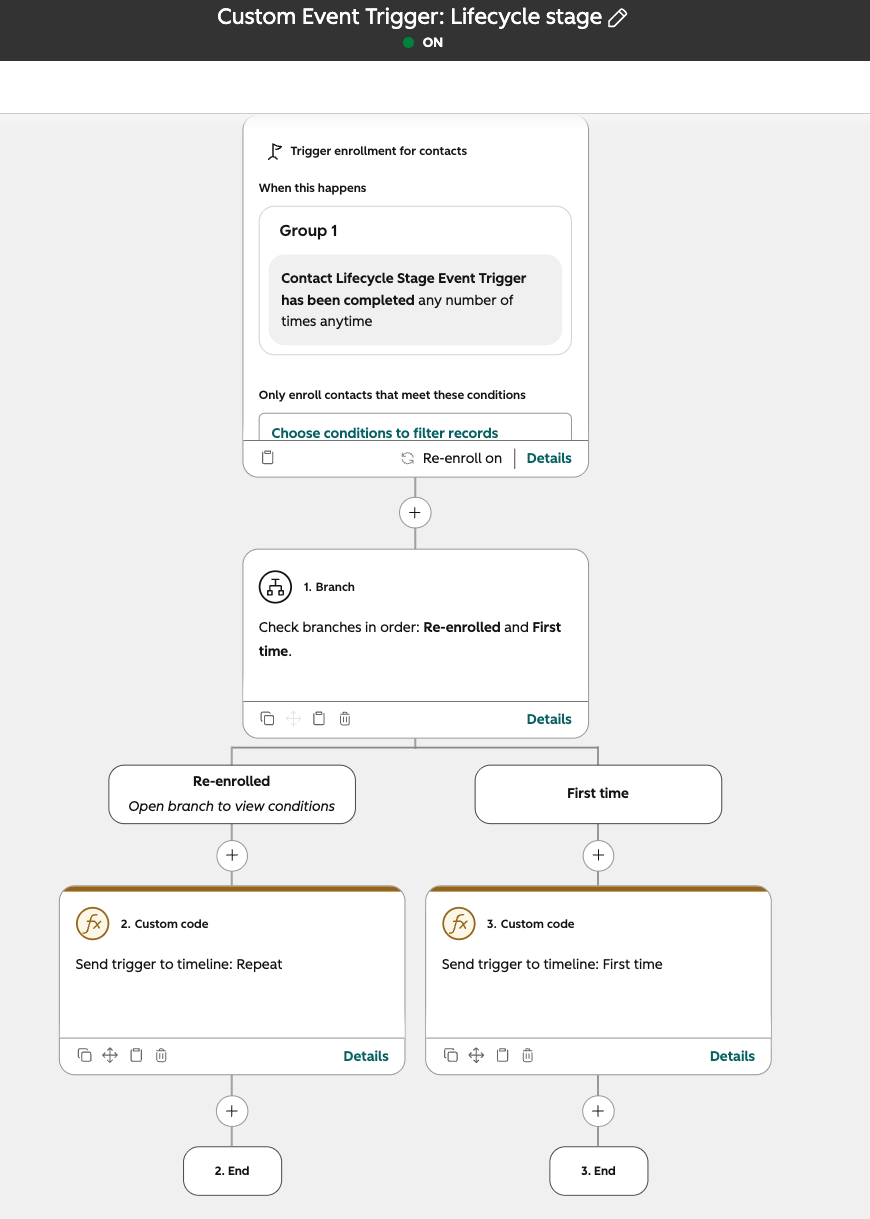
- A workflow with triggers for the record type the event is set up for
- A secret to use for the API call (code in the code step)that is tied to a service key or private app with scopes for
analytics.behavioral_events.send - A custom code step that does the same thing we tested in Postman, sends values for the event to log
For each of the trigger events that has different text, you’ll need to set up different code steps that specify the details. Or, you know, get very fancy with pulling in properties and set up a logic to define what info is sent based on what combinaton of informaton. One flow -> One output is usually easier to update if something needs tweaking in the setup.
In this particular instance, rather than do the developer recommended route of “single serve flows for easier debugging” I tacked on the code step for key events wherever I could.
For example, a submission to a specific form now also logs the custom event to the contact timeline rather than require a separate flow.
Property to filter first or repeat trigger
As I cover later around how to use the event info for reporting, I needed to add a flag to see the first instance the event was triggered for the same lifecycle stage value. Adding a branch to check on the workflow status on the enrolled record is a quick way (not code heavy) to do this. Options include:
- In its simplest form, check enrollment/completion status on the same workflow (provided that this is allowed).
- You can make it a bit more complex, but comprehensive, to cross-check other flows that set the same value. (Be warned: heavy admin for changes!)
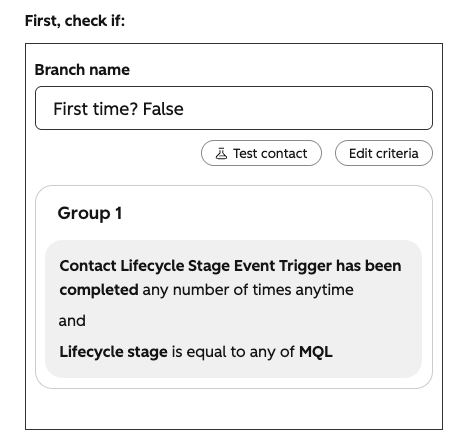
A third method is a similar branch logic, but it checks known values on the trigger event itself.
Backdating information
I set up workflows to handle Contact and Company custom events, but this only solves for the triggers happening moving forwards. There was still a huge backlog of happenings for several months (quite a fresh portal! Could’ve been years) that should be included in the dataset.
Generally speaking, you’ll need to:
- Export data for the sources needed to determine the tigger events (can be solved by LLM-access, private app with scripts)
- Run script to do API export of historical values for properties ties to trigger events not included in the export (rolled into point above if direct access to portal through those means)
- Anonymise dataset (eg. only keep record ID but remove contact/company names and contact details)
- Run script to review sources, and create new output files for the values to import
- Either import events from a file or prepare to send via API
In this particular case the run order was to:
- Export Deal data with record ID + create date, close date, pipeline stage and associations to contacts and companies (by record id)
- Export Company data for Company and Contact data with columns for just the identifiers needed for the triggering events
- Combine each step of added output, cross refrence and produce final output
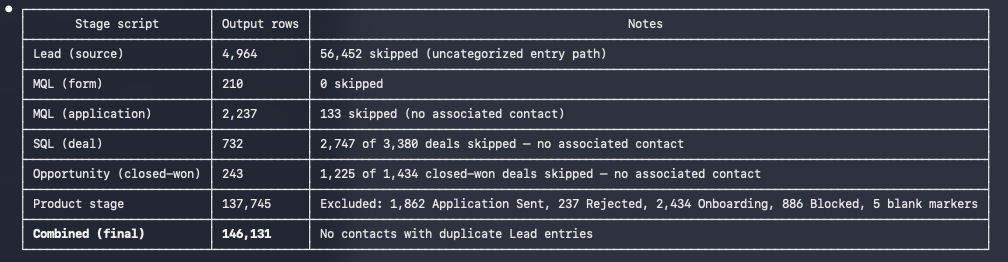
Messing up the import: Deleting the event
If you massively, majorly mess up the custom event and need to delete/redo a lot of imported events… delete it. It will remove all logged instances from the UI and make it non-accessible in reports etc. You’ll need to set up a new one and remap any API to the new tracking ID, but can reuse the same internal property names as you already have set up so changes to any code steps can be kept to a minimum. Before you can delete anything you’ll need to disconnect (delete or remove connection temporarily) any reports, workflows, lists or other in-app tools using the event properties.
Word of warning! Do not reuse the same internal name for the event itself when you create a new one. This will give it the same tracking ID, and your deleted earlier events will re-appear, but these will not be accessible in the UI under the newly created custom event (for manual/bulk deletions) essentially locking them from being removed. It will also block you from adding any new events. These will be shown in the custom event UI under the tab occurrences, but not actually be logged on the object timeline rendering it useless (at lost in my 10+ attempts).
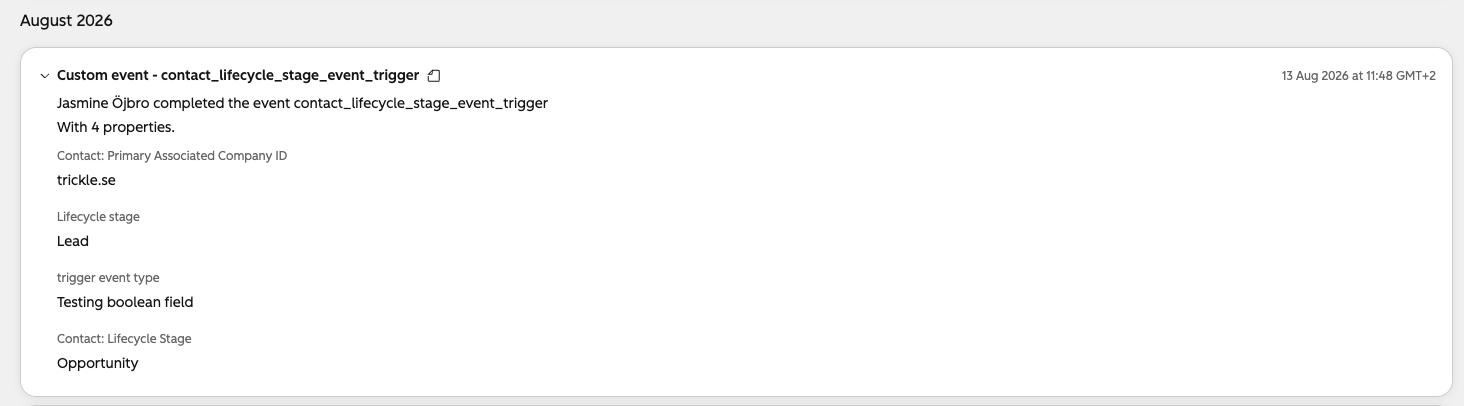
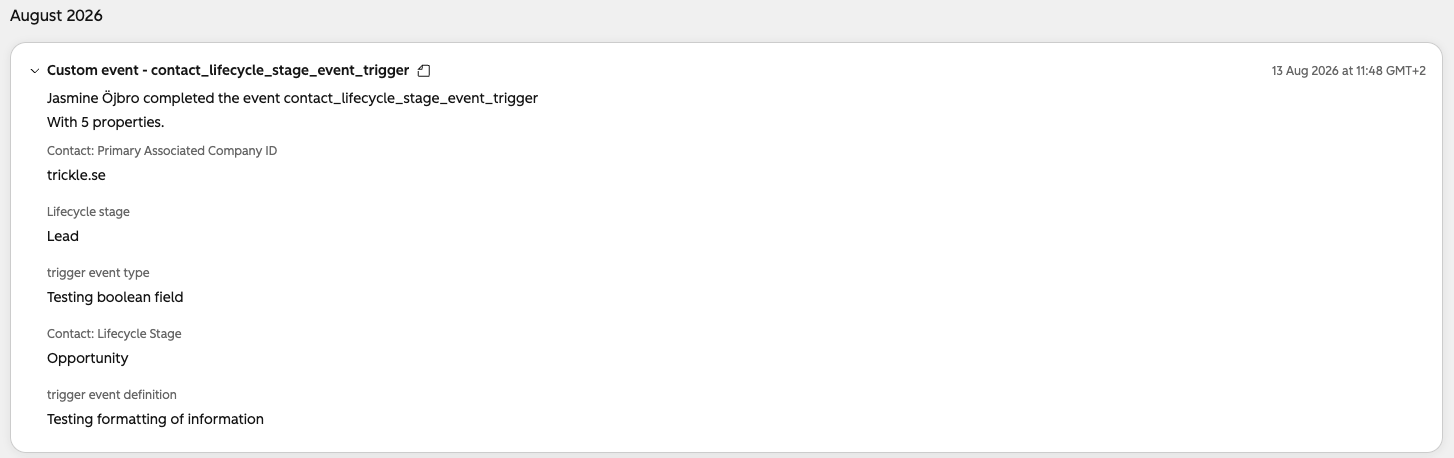
Time betwee deleting event and setting up a new one with the same trigger ID was within a span of 30 minutes, so I’m not sure at this time if a longer wait would nullify the timelog and leave it blank to reuse as a fresh one.
Using the data: reports and AI insights
Funnel report
The custom event is available under the list to create a funnel report. Unlike adding a pipeline or lifecycle stage step, you will need to apply the same custom event in each step of the funnel and instead use filters to decide which information to see.
For example, during testing I sent across a different order of triggers for lifecycle stage, where the funnel would only show linear progression.
This is an excellent way to get an overview of the total conversion values.
Count of events by date
Opening the custom event and then clicking the button Use in and Custom Report Builder and you’‘ll get the correct dataset right away to build an overview of number of event triggers by a certain time scale.
Picking a vertical bar, the X-axis is the timestamp for the trigger event and the Y-axis should hols the count of event triggers. Apply one of the properties (I used Lifecycle stage for example) in the Break down by setting to differentiate what was triggered.
What this view lack is the ability to count a specific cominbation of filter and triggers only once.
One contact that has multiple trigger events with the property “MQL” will have each instance of that shown in the report.
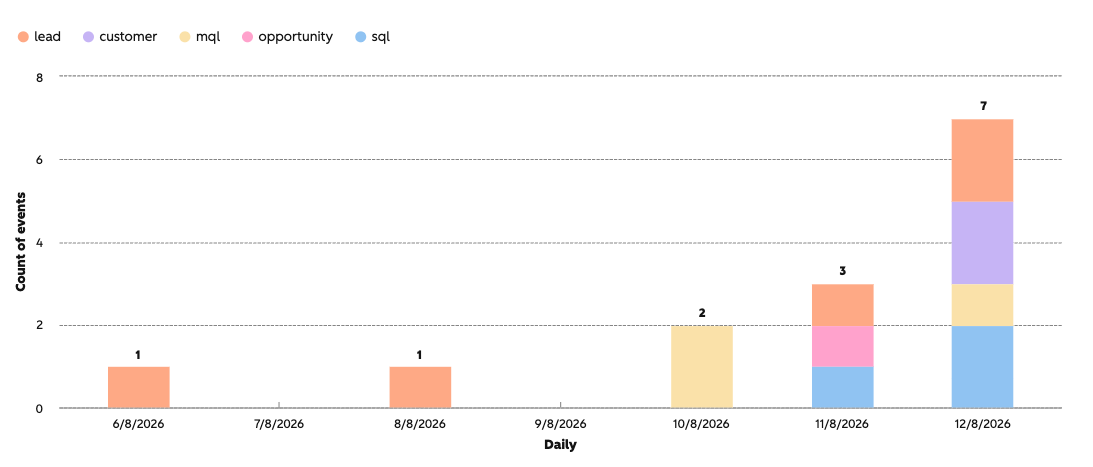
Two solutions here can be:
- Log another property to act as filter where
is_first_stage_entrytrue/false can be used to show total number of trigger events vs only the first instance. This does require more work to make sure the logic that sets true/false is correct. - Use two separate events. One for each trigger to get rich data to understand engagement paths, and another for just the first instance of that trigger type/stage.
I opted for the first one for all historical imports, and added a logic to workflows to add a similar flag (not completely foolproof).
Breeze / AI analysis
Arguably, moving information from the source data to a neat timeline event also makes analysis of journeys much easier. Asking Brezze (HubSpot’s on-platform AI) or you connected LLM of choice (or with an export of )
Other details that can be good to know about
- To delete an event, go to the custom events tool. Open the event and go to the tab Occurrences. There is a max limit set at 1000 deletions per month. So test diligently before a massive import.
- It seem to take some time for all events to display in the custom event UI. I had issues
- The custom event for API is meant to be fed from code (different source or custom code action from a workflow) but can handle a CSV import of historical data as well.
- In itself, it’s not difficult to set up. The admin maintenance comes from keeping up with adding or changing rules and messages for triggers. I opted to attach as much as possible to flows for lifecycle stages that utilise many of the same triggers, but it’s still a hefty number of places to look for edits to add/change something.
- Double check with a small alpha import/API send that you’ve configured
occuredAtcorrectly. Here I had to navigate summer/winter time and making sure it was matching the portal timezone settings. - The easiest method I found to export events was to go to the custom report builder, picking the custom event and pull in the properties needed in a view. Setting the time period to as far back as it can stretch should then allow you to export unsummarized dataset to get the raw file of record id to custom event properties.