Using data from webhooks with workflow trigger set to when a webhook is received
As I’ve been learning more about using webhooks in HubSpot, I stumbled upon the not very clearly explained problem of which type of properties you can actually send in a webhook action that can later be used inside the webhook.
Simply explained, HubSpot’s knowledge base article on using webhook triggers in workflows doesn’t go into great detail of what kind of properties you can use, and how to configure these to be used in the workflow.
I’ve ran some tests to find out more about this:
- Set the workflow trigger to When a webhook is received.
- In HubSpot, picked one standard property of each type; where a suitable on didn’t exist I set up a new one to use.
- Test send of data from Postman to the webhook url. In the body message add properties of the different types with values.
- In the webhook step, send the test, map the data and then trial what can be done with the data.
To keep the tests simple, I’ve done an ideal scenario where the data coming from the 3rd party system has the same internal name and values as inside HubSpot.
Mapping the data
When a property and its value is sent through, we can map it against a specific type. It can be set as:
- Text - text strings. Dates and datetime properties need to be mapped as strings, and later transformed with a custom code action.
- Specific values - for listed values (dropdowns, radio select etc) where there is a finite list of specific values. Called enumeration when you look for types of properties.
- Boolean - yes/no or true/false. There are only two options.
- Numbers - for, well, numbers.
The mapping is a one-time step. I’ve not found a way to add, remove or considerably change the setup without setting up an entirely new webhook trigger.
It’s therefore best to first configure your send message in Postman, send the info to the webhook URL as part of test and then proceed with mapping, and do it thoroughly.
Editing your webhook
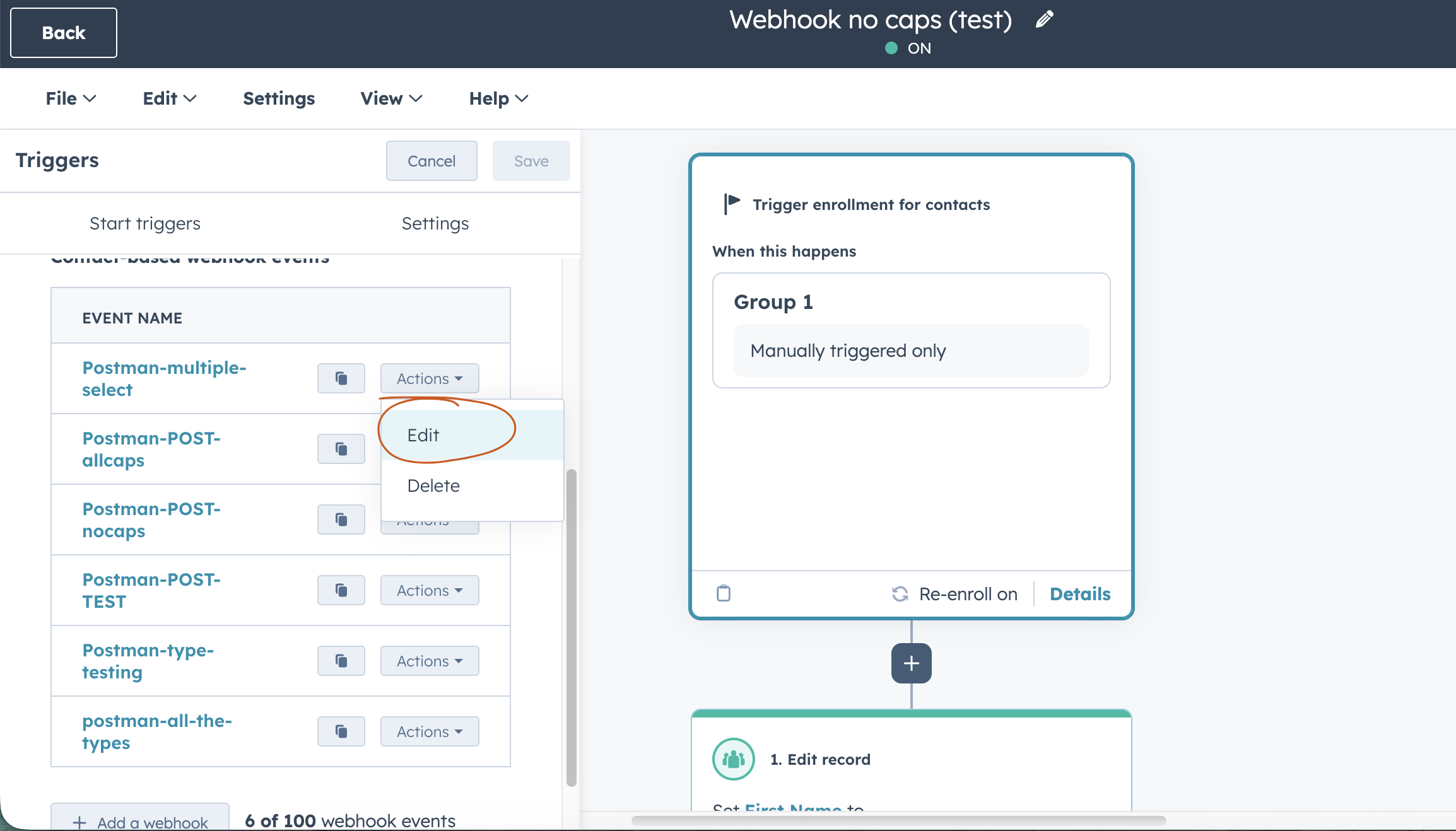
To access editing the webhook, the only way forward that I’ve found is to go to the enrollment trigger, click change start trigger, once again pick When a webhook is received and then go Actions > Edit.
You can edit the name of the webhook, and the label you use for the properties that are being received. I’ve not found a way to add, remove or make other changes or updates to the properties/vaues/fields. If you want to add or change something fundamental, you need to set up a completely new webook to use.
How to use the data
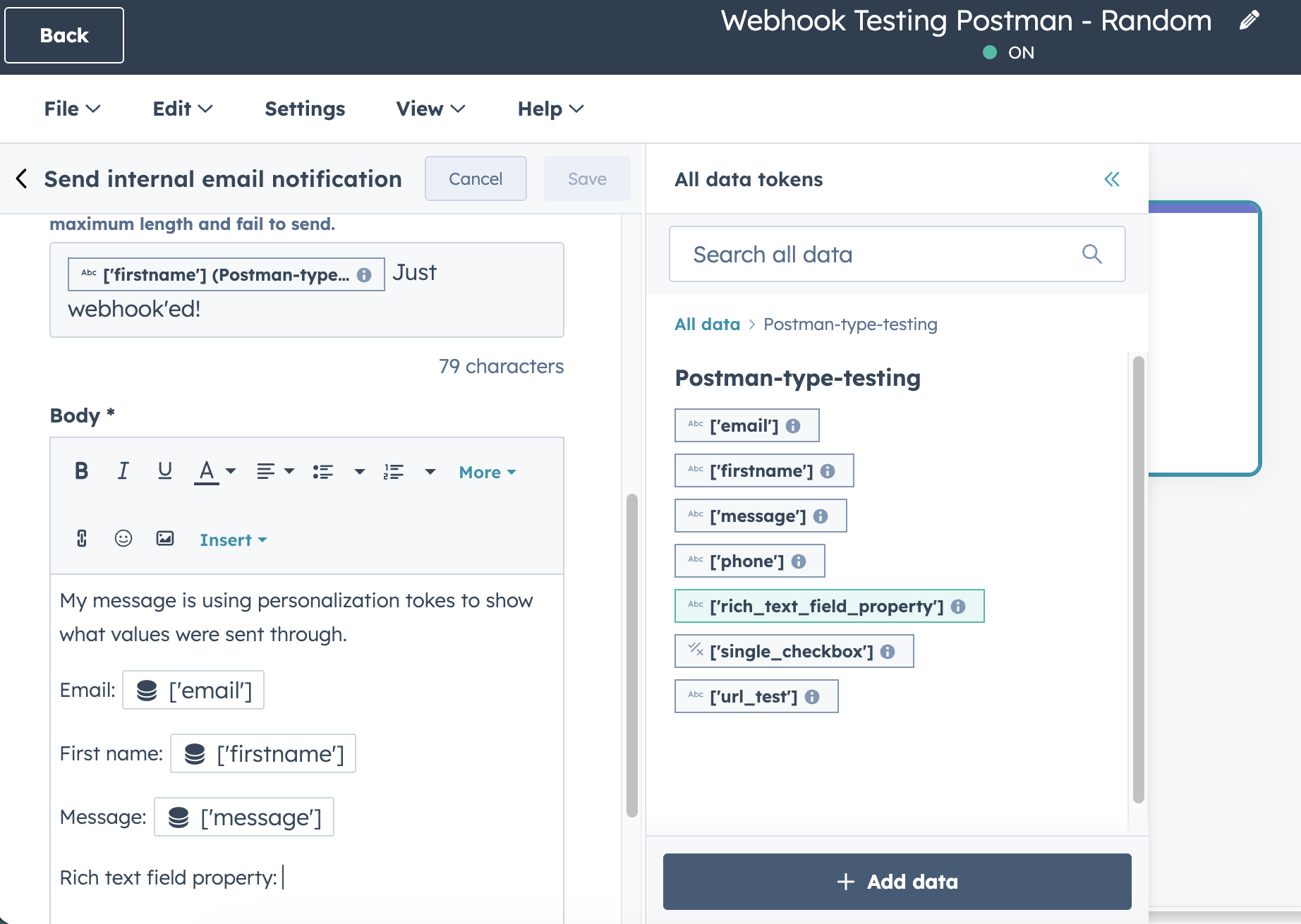
All types - All incoming data can be added as a personalization token for things like internal notifications, notes, tasks and emails. It will show whatever value gets sent through, so you may want to include branching logic to make the messages clearer, as a value of true/false isn’t too user friendly.
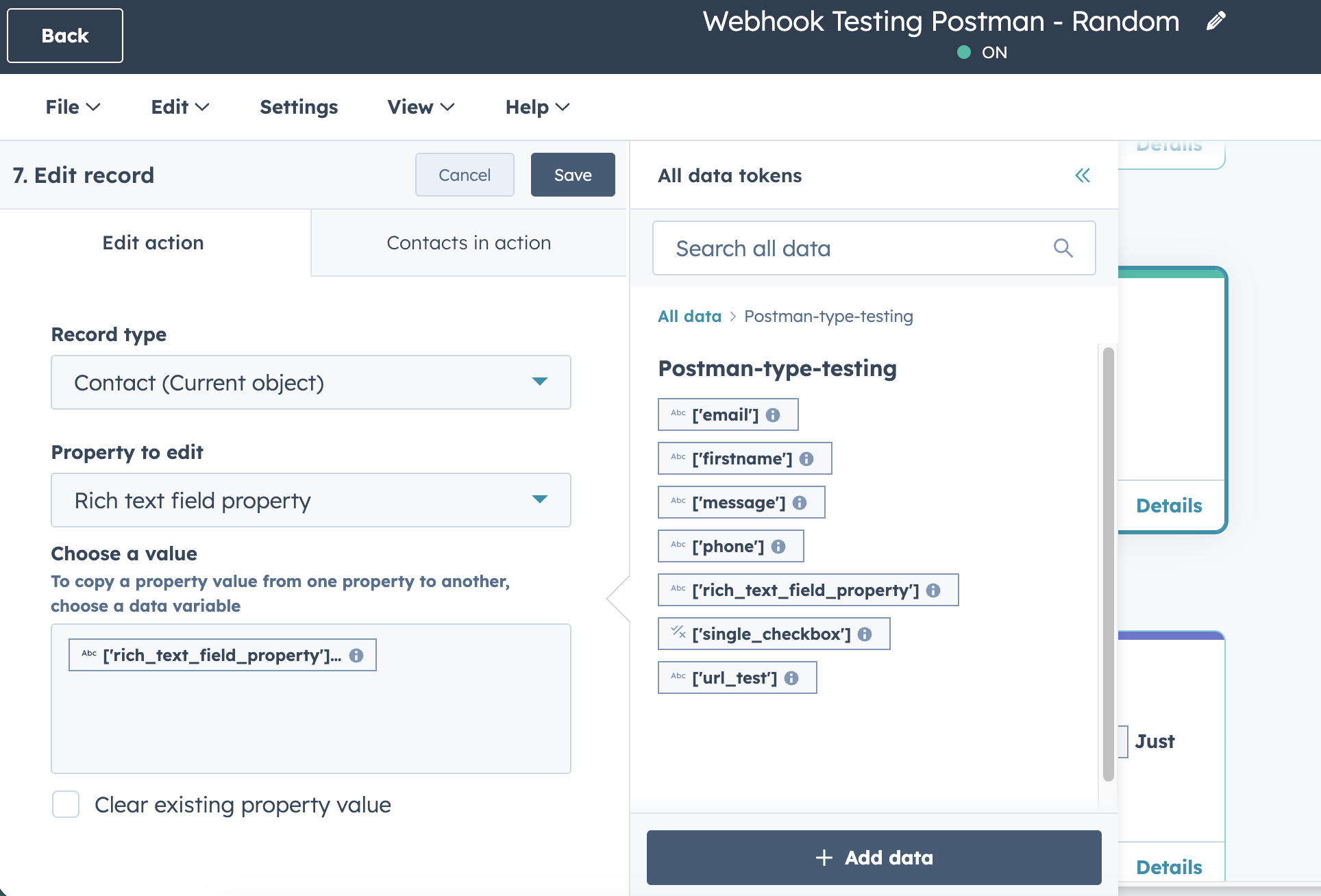
Text/Strings can be used in a edit record step for text propeties and to create a branch in the workflow where you choose specific trigger words (possible values) when setting up the branch itself. This means you don’t need to map in the webhook setup step and can easily amend later on.
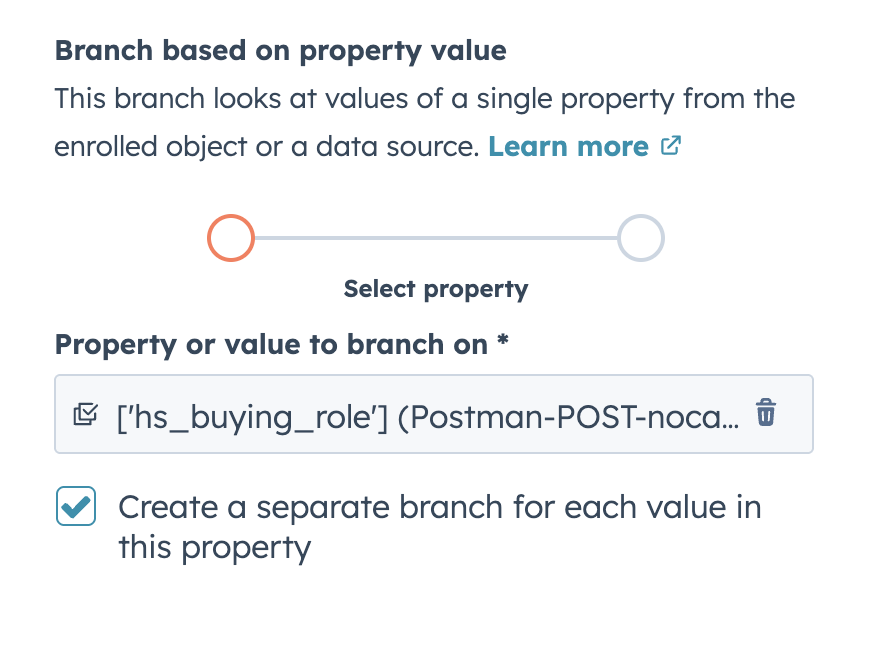
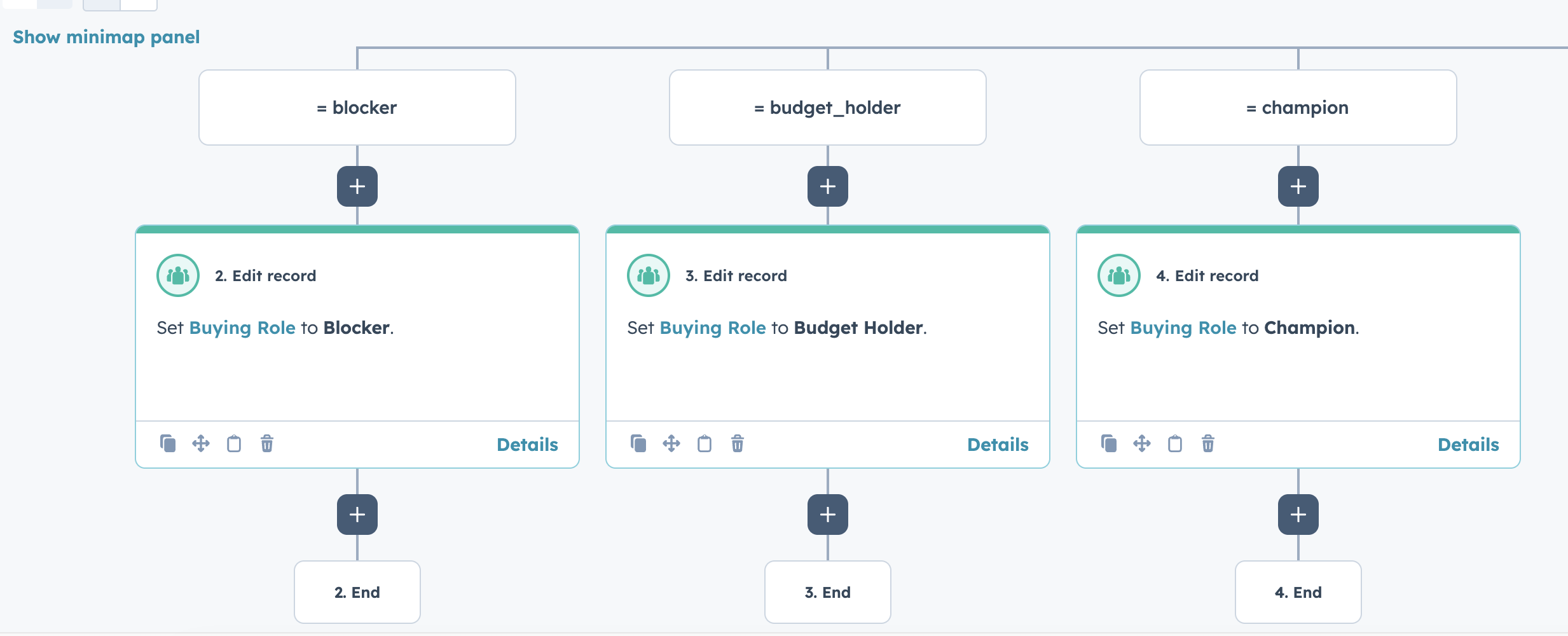
Enumeration/Specific values will work for creating branches. If you’ve been diligent and added the full list of options, you can easily set up branches for each option (just click the Create a separate branch for each value in this property during setup).
It will not allow you to use the information in a edit record step, so if you want to use this to update information, set up the branch and then edit record step that will change or append the data depending on the brach.
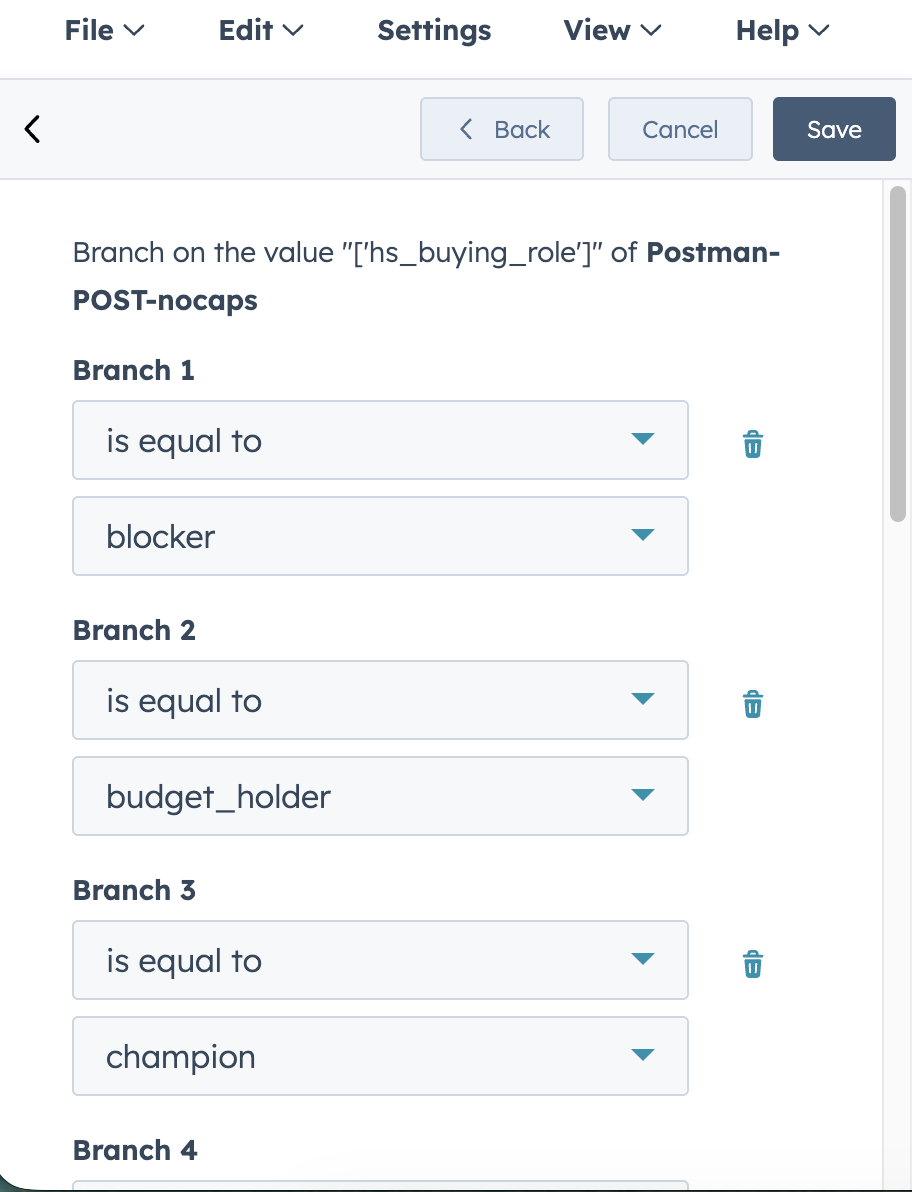
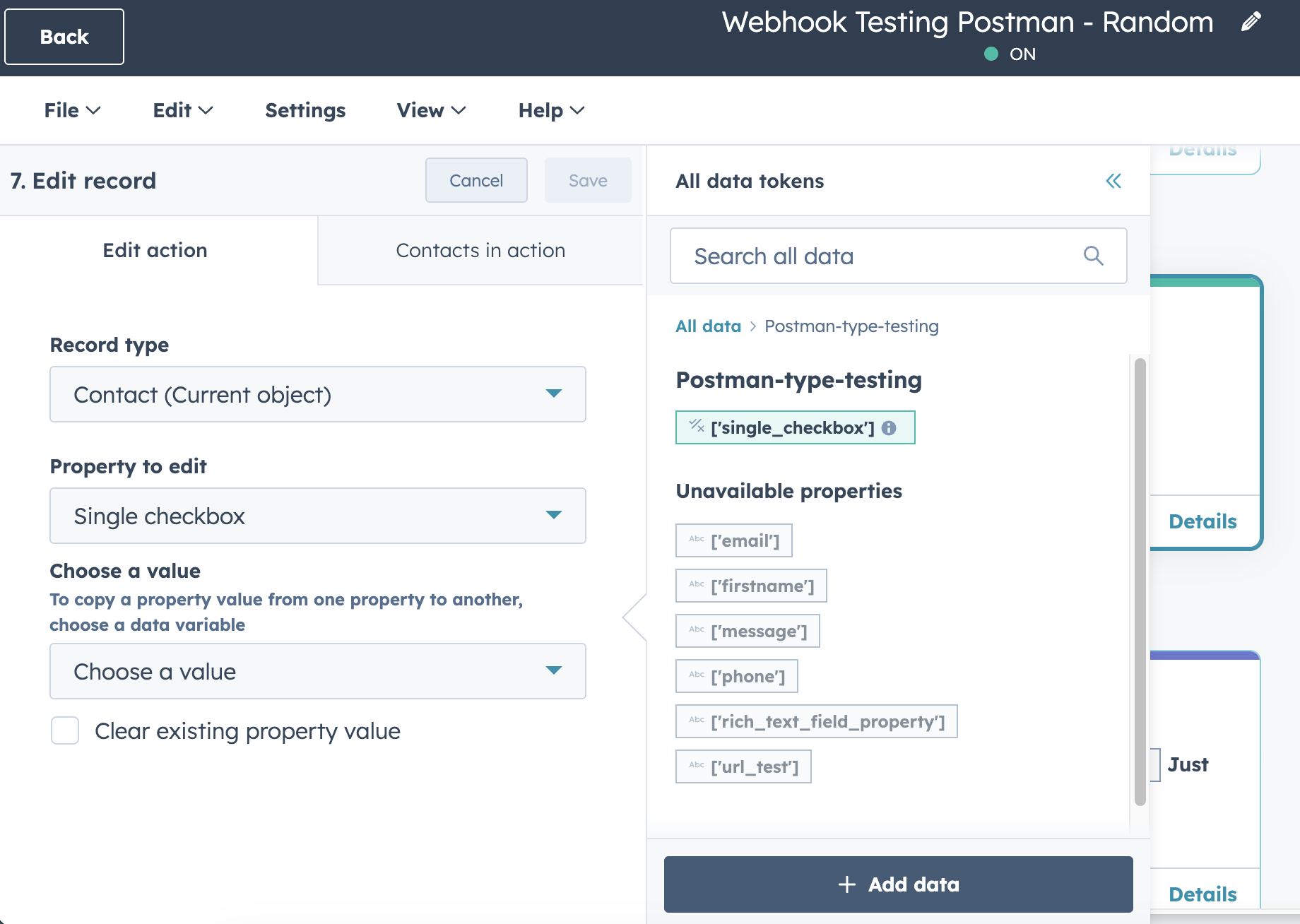
Boolean can similarly to strings be used to edit records and to add branches. I’ve found best success with using the true/false internal value rather than the label (yes/no) itself.
Numbers can be used to directly edit a record. And branches, but not the nice kind where it maps automatically for you; you need to do it like for text strings where you input different possible values.
Enumeration
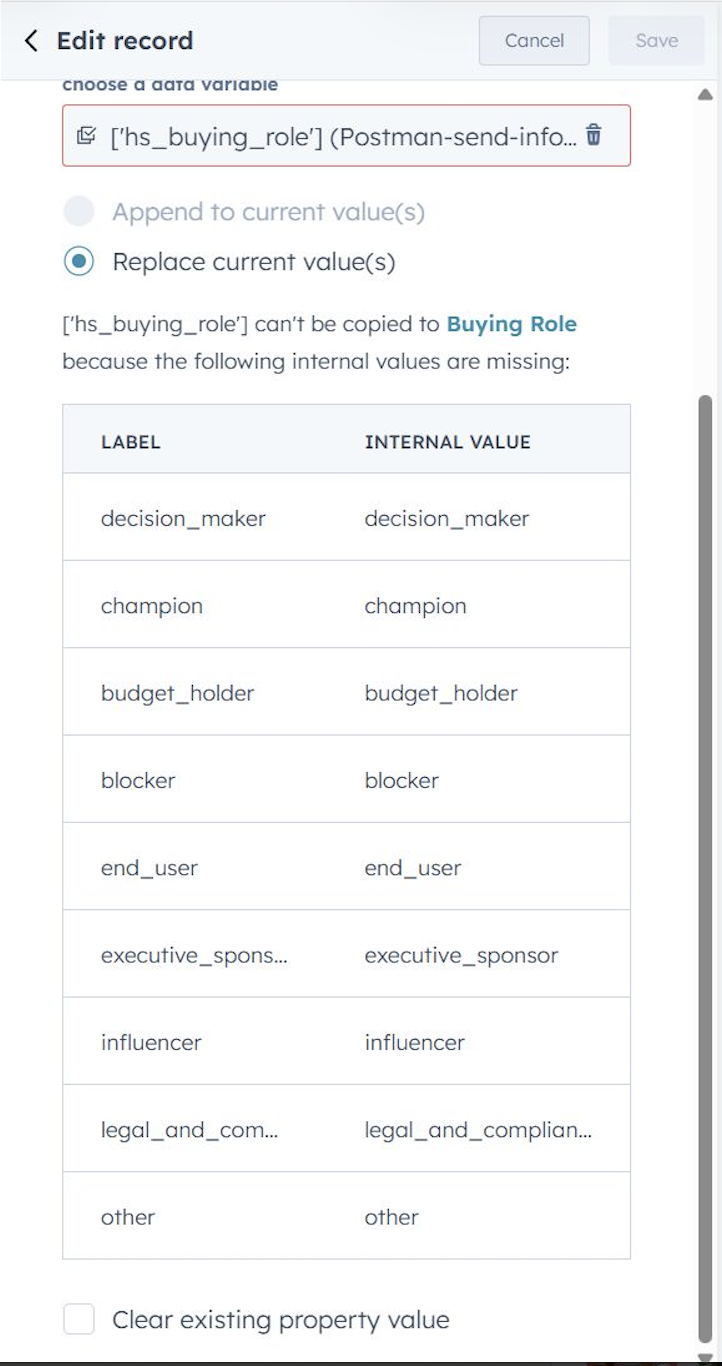
I have had a lot of headache figuring this one out. Counterintuitively, you can initiate creating an edit record action and pick a enumeration type for it, but no matter how you’ve mapped values, it will lock you from actually using the data to edit a record directly.
I got Brooke Bond, Dev Advocate from HubSpot, to weigh in on this via LinkedIn:
The main reason why it’s not working is because when your data from your webhook is being sent to HubSpot, HubSpot still sees it as “a value from a webhook event” not “a Buying role property I can copy from”.
In other words, HubSpot sees the value and can grab it for things like us in branches or tokens, but it doesn’t understand that it can (and should) match the mapped list of values to an existing list of values. I personally feel like this is a UX issue in the UI since it’s not clear along the way (preferably you’d not be able to pick enumeration type properties for this action!).
Testing properties and types
In an ideal scenario we’d have a 1:1 mapping of internal names and values between the source sending the webhook data and HubSpot. However, in reality we’ll likely not get a perfect match.
A field could be called surname in the sending software, and meant to populate lastname in HubSpot. It’s also possible to send an enumeration property but set it up to map to a text field if that suits the workflow better.
I’ve gone trough and tested sending data to standard fields, and where an appropriate didn’t exist, a custom created property.
Before you get all gung-ho and try to update HubSpot presets, you’ll need to check that the properties are actually editable. Some properties like time between deal stages is locked; meaning you can’t add or override data.
String
For text-fields:
- Single-line text -
email - Multi-line text -
message - Phone number -
phone - Rich text - I used a created property for testing:
rich_text_field_property. This is an interesting one! You can send HTML as a text, and it will render as the HTML output. I’ve included it in the test. If you embed images or links, you need to follow a specific format so it doesn’t break the JSON formatting. - URL - custom property:
url_test - HubSpot User - is an enumeration field, like
hubspot_owner_id, but I’d argue that since you cannot update the webhook options it makes more sense to map this to a string value to be able to use and update branching logic
Enumeration types with specific values
For properties that have a fixed, set list of options. The receiving property is an enumeration type, and mapping the sending type as a specific values helps build out branching logic and the like. You might as well use this most of the time as a string value wouldn’t directly copy into the property anyway.
- Multiple checkbox -
hs_buying_role - Dropdown select - custom property:
dropdown_select_property - Radio select -
hs_lead_status
Boolean
You can have two values: true or false. These can have an external facing label of yes (=true) or no (=false).
- Single checkbox - custom property:
single_checkbox
Numbers
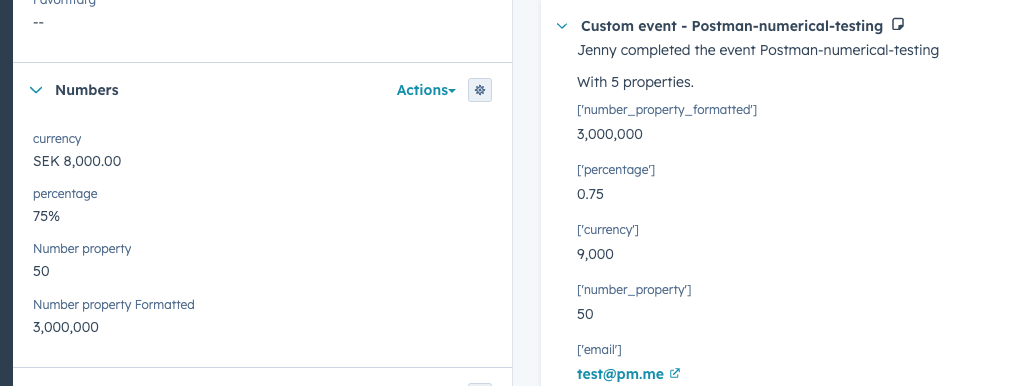
Numbers! Come in many shapes. And with that I mean formats. The property type itself is set to Numbers but has a number of offsprings in different flavours:
- Unformatted - Where big numbers just go on: 1000000
- Formatted - Where big numbers get comma signs to become legible: 1,000,000.
- Percentage - Set as a decimal value
0.75and it will display as a percentage in the UI: 75% - Currency - Matches your number in the UI with the company currency, prefacing the number with a nice
SEK,EURorGBP.
Important HubSpot will format the number for you, so sending through the data should be without any commas or additional spaces.
If you try sending through "number_property_formatted": "3,000,000" Hubspot will not read it or use it to edit the record (just skip over it and say it’s invalid format.) It needs to be inputted as "number_property_formatted": "3000000" and Hubspot will format it.
Not editable via webhook
Field types or things we feel should be editable via webhook, but use different API calls are:
Full list and explainer of the field types can be found on HubSpot’s knowledge base.. I’ve opted to test using properties provided by HubSpot straight out of the box, but had to create one or two bespoke where I lacked a HubSpot provided one to use.
Properties in the body message of the webhook test
If you also want to trial this hands-one, use the following setup info to the webhook for configuring:
- Make sure you have the corresponding properties set up inside HubSpot from the list in the previous section.
- Open Postman. Create a new collection.
- Set up a new webhok, Set to POST and add in the URL from the webhook step you got from HubSpot.
- In the setttings right below, go to the tab for Headers and add the
KeyandValueby setting these to:Content-typeandapplication/json. - Navigate to the next tab, Body. Click the radio button for raw and check that the text to the right is set to JSON (there is a dropdown chevron icon to click on and pick if this isn’t pre-selected).
- Paste in the body message below, and hit Send. You should now see the information in HubSpot, and can continue with the mapping and setup.
Body message
Test send from Postman to trial it yourself. Add and change as you see fit to test the result of different configurations.
{
    "email": "test@pm.me",
    "firstname": "Jenny",
    "message": "this is a multi-line text property with lots of information. Add even more text in here to see how it goes!",
    "phone": "0123",
    "single_checkbox": "false",
    "hs_buying_role": "champion",
    "url_test": "https://www.pm.me",
    "rich_text_field_property": "<h1>Hello world!</h1><br><img src=\"https://media4.giphy.com/media/v1.Y2lkPTc5MGI3NjExZ2JyeG1wZjdsZHhuM2x2bDVoOTR4a3hoYjY5dDA5bGdrMXVtMnlkeCZlcD12MV9pbnRlcm5hbF9naWZfYnlfaWQmY3Q9Zw/If06XcAqynYH8QEP9S/giphy.gif\"/>",
    "number_property": "1000000",
    "number_property_formatted": "1000000",
    "percentage": "0.75",
    "currency": "40000",
}